Foldman user guide
Foldman - Cassette player turns a foldable into a pocket cassette player. Open the phone to pick a tape, close it to play. This booklet covers every key, gesture and setting, with pictures.
- Getting started
- How Foldman works
- Your music becomes tapes
- The rack and the deck
- Playing on the cover screen
- Bodies and finishes
- Make a tape yours
- The service hatch
- Tape wear and the maintenance bench
- Outside the app
- Keep it with your music
- Phones that don't fold
- Privacy and usage stats
- All gestures at a glance
- Questions and fixes
Getting started
Foldman plays music files stored on your phone. It doesn't stream and comes with no songs, so copy your albums to the phone first: CD rips, downloads you bought, your band's demos.
1. Install
Get Foldman - Cassette player from Google Play. It works on book-style foldables (the Galaxy Z Fold and Pixel Fold kind) and on ordinary phones too. See Phones that don't fold.
2. Let Foldman read your music
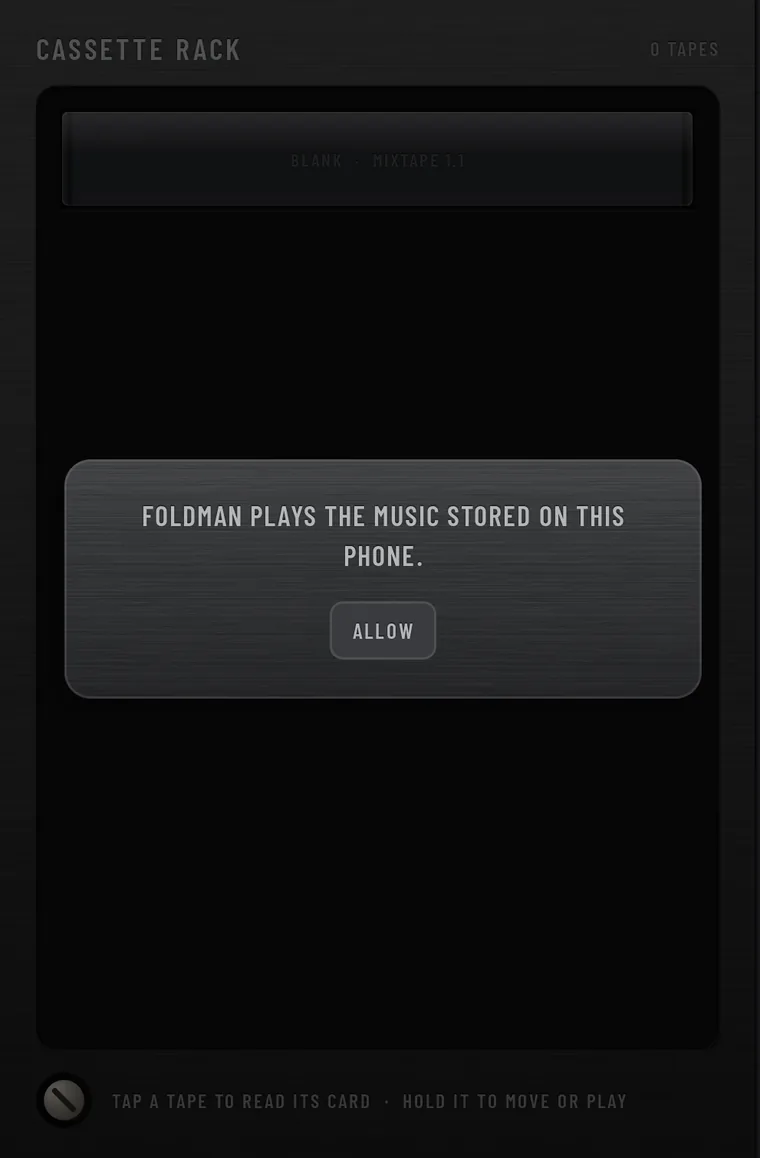
The first time you open Foldman, a card says FOLDMAN PLAYS THE MUSIC STORED ON THIS PHONE. Tap ALLOW, then allow access in the Android prompt.
The same prompt asks to show notifications. Allow those too: the notification is where your lock screen and Bluetooth controls come from.
Said no by mistake? Open the service hatch and tap ALLOW MUSIC ACCESS. You can also skip this permission entirely by picking music folders instead.
3. Keep playing when you close the phone
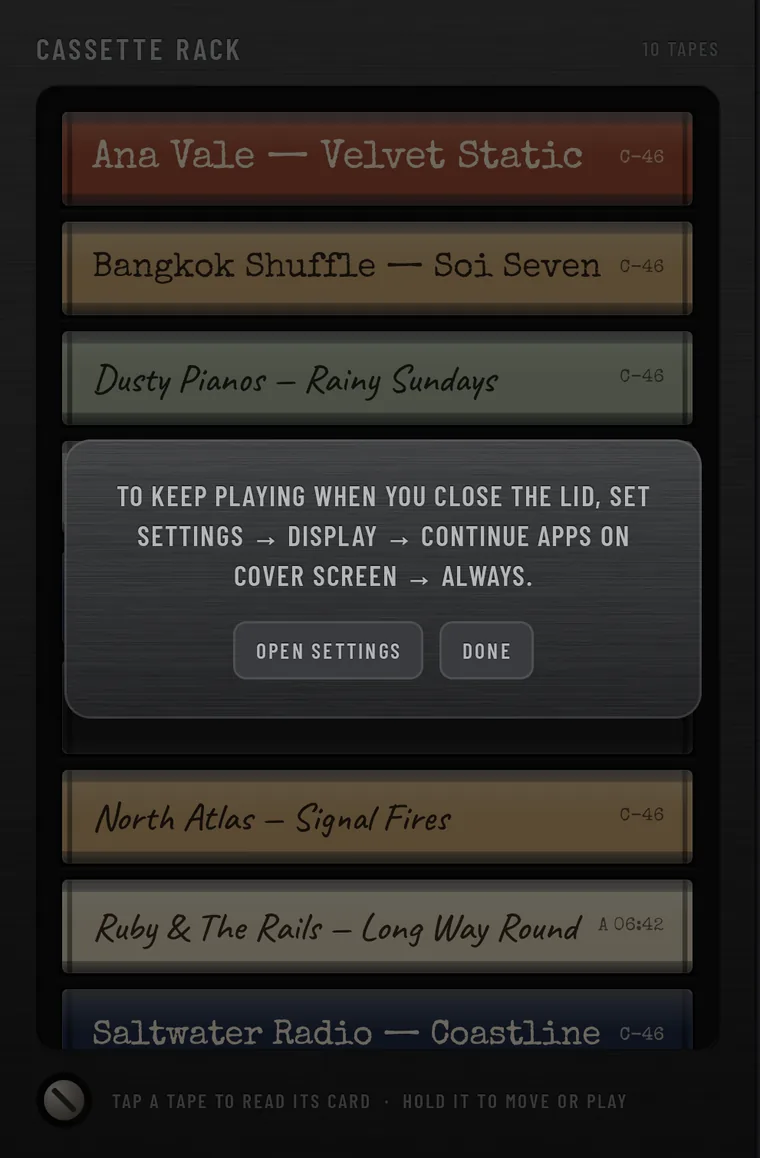
Foldman plays on the outside (cover) screen with the phone shut. Android normally pauses apps when you fold the phone, so the next card asks you to change one system setting:
- Galaxy Z Fold: open Settings › Display › Continue apps on cover screen and turn it on for Foldman - Cassette player.
- Pixel Fold: set the same option to Always. On other foldables, look in Display settings for something similar.
OPEN SETTINGS takes you to Display settings. Tap DONE when you're back.
That's it. Every album on your phone is now a tape on the rack. Drag one into the deck, close the phone, and press PLAY.
How Foldman works
The hinge is the switch. Like a real portable player, the tape only runs with the lid shut.
Open: the cassette door
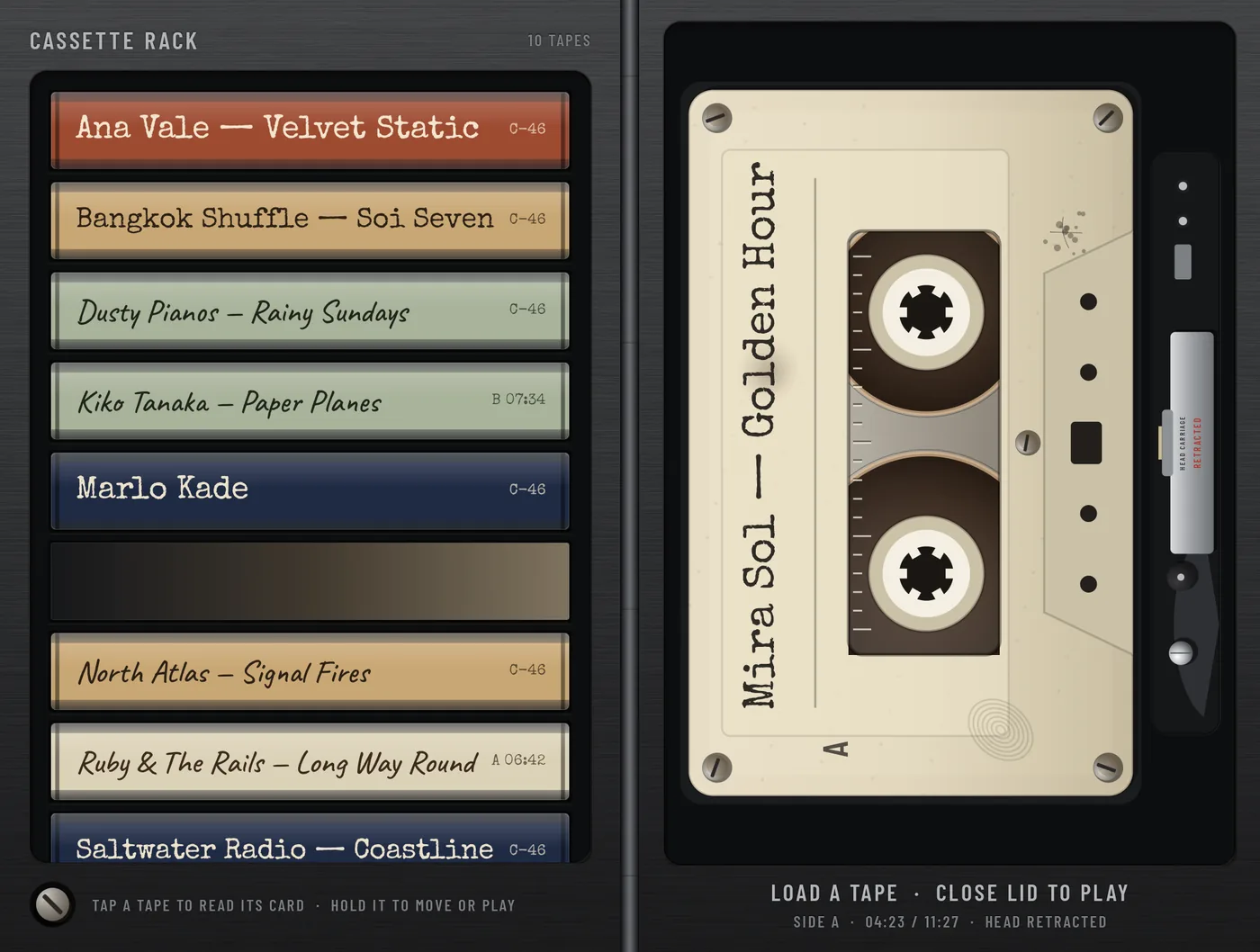
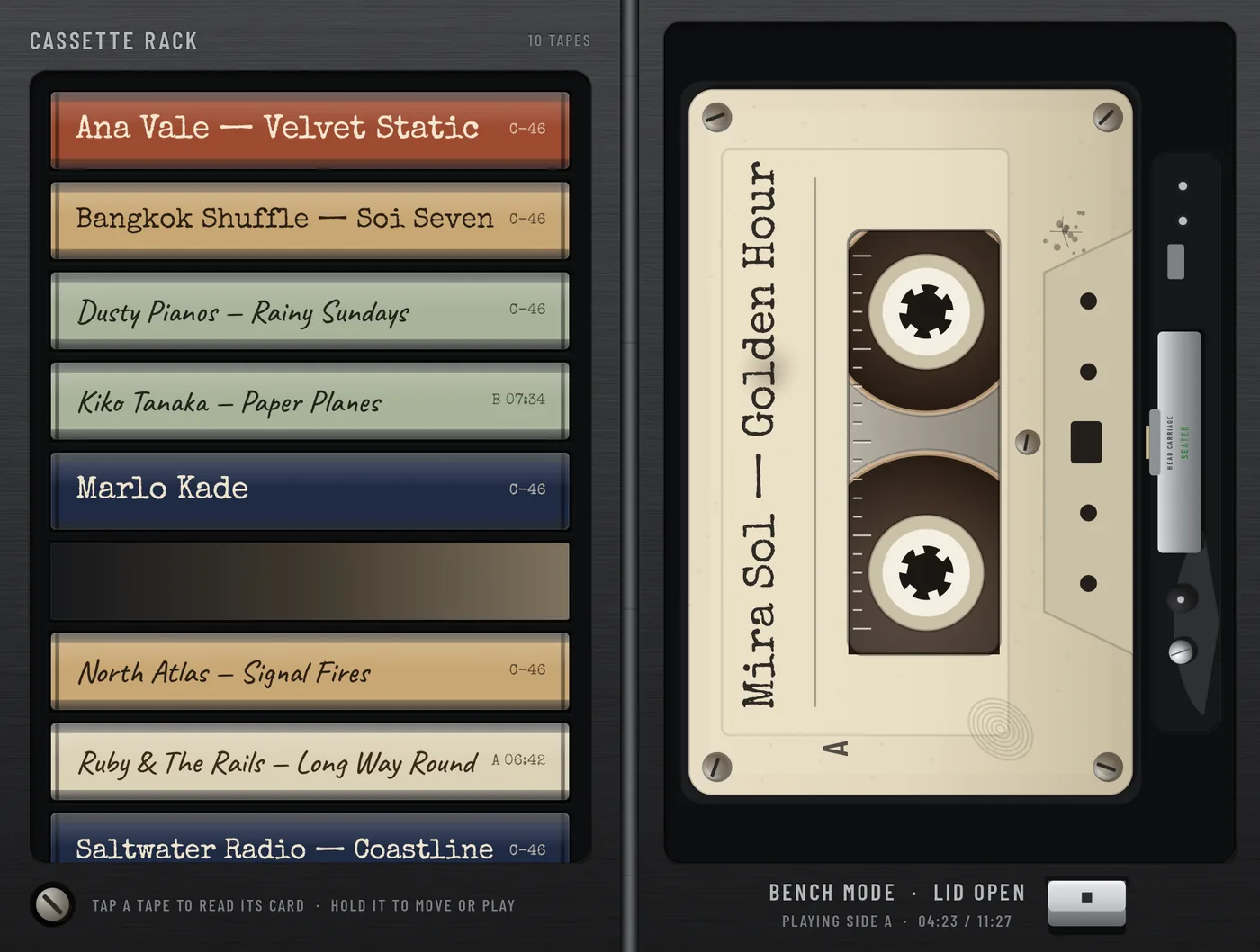
The inner screen is the player with its door open. Your tapes stand in the rack on the left page and the deck is on the right. You choose and load tapes here, read their cards and change settings.
Closed: the deck
The cover screen is the player itself: keys, tape counter, volume. This is where you press PLAY.
Half open
Prop the phone open part way and the inner screen shows just the mechanism, with the audio held: HALF OPEN · AUDIO HELD · CLOSE LID TO PLAY.
What happens when you open and close
- Opening the phone while a tape plays fades the music out and stops the tape, as if you'd lifted the lid. The tape keeps its place.
- Closing the phone doesn't start the tape by itself. Press PLAY.
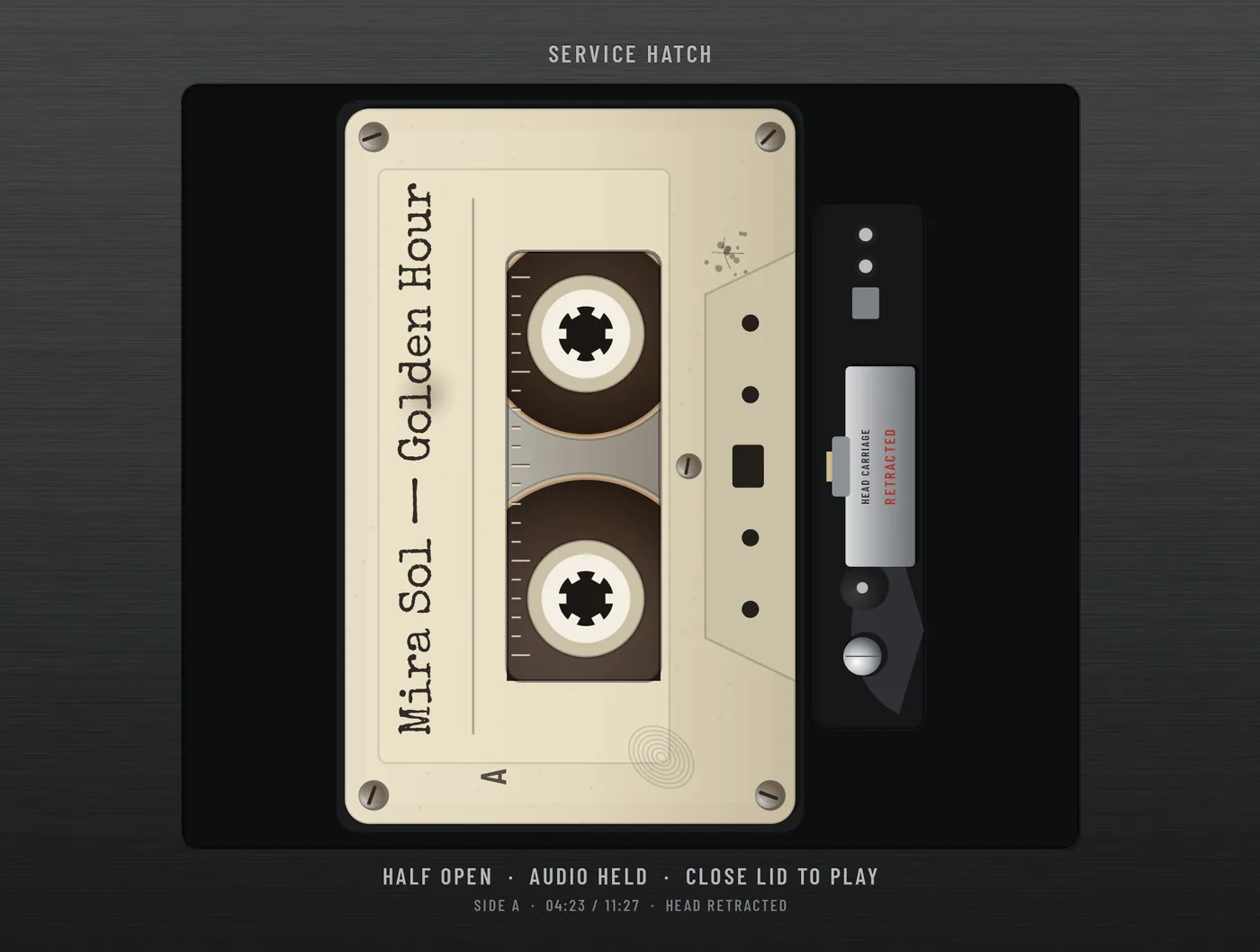
- Want to listen with the phone open? Switch the hatch's MODE to BENCH.
Your music becomes tapes
Foldman reads the tags in your music files (artist, album, title, track number, length) and puts each album on its own tape.
All music, or only some folders
Out of the box, Foldman uses all music on this phone, the same songs Android's other music apps see. New files show up by themselves.
To use only certain folders, open the service hatch and tap ADD FOLDER under MUSIC FOLDERS. Add as many as you like, including folders on an SD card; REMOVE takes one off. When at least one folder is picked, Foldman reads only those folders.
- File types: MP3, M4A, AAC, FLAC, OGG, OPUS and WAV.
- A file with no tags takes its folder name as the album and its file name as the title.
- Cover art embedded in the files is used for the tape's card.
- While Foldman reads a folder, the rack header counts SCANNING n / total.
How tapes are made
- One tape per album, labelled Artist — Album. Set RACK to ARTIST to get one tape per artist instead, with their albums in year order.
- Compilations (album artist "Various Artists") always stay one tape per album.
- Songs with an artist but no album go on that artist's tape. Songs with neither go on one UNTITLED tape at the end of the rack.
- Side A and side B are split at the halfway point of the running time, never in the middle of a song. An album with a single long track has a blank side B.
- The length printed on the spine is the cassette size it would need: C-46, C-60, C-90 or C-120.
- Recordings under 20 seconds (voice notes, ringtones, skits) are left off. Turn SHORT RECORDINGS to SHOW to include them.
The rack and the deck
With the phone open, your tapes stand spine-out in the CASSETTE RACK. The header counts them.
Read a spine
Each spine shows the label and either the tape's length (C-46) or, once it has been played, where the tape was left, such as B 07:34: side B, seven and a half minutes in. The tape in the deck leaves its slot empty and lit.
Load a tape
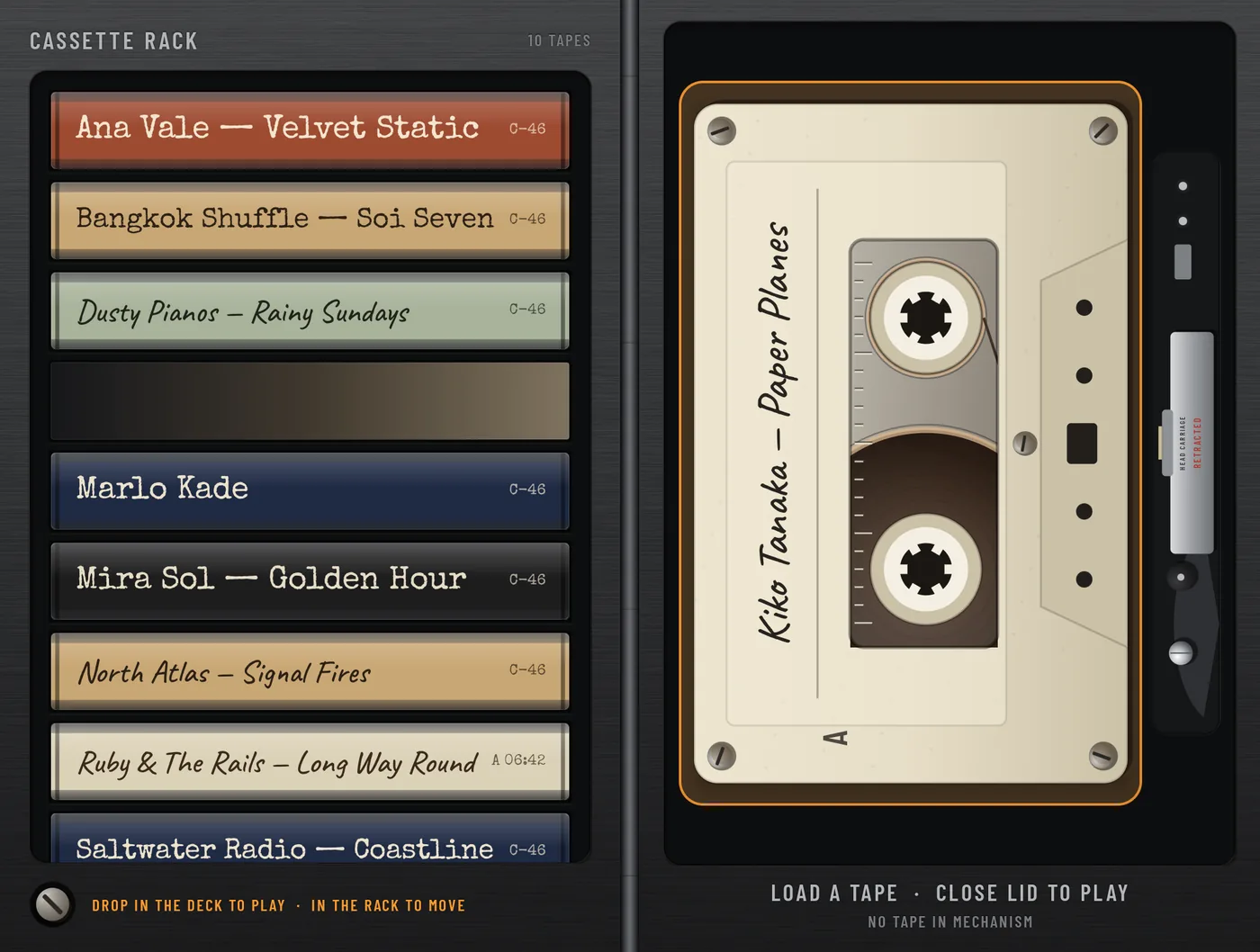
Hold a tape until it lifts out of the rack, then drag it onto the deck. The empty deck says DRAG A TAPE HERE, then RELEASE TO LOAD as the tape arrives over it. Let go short of the deck and the tape goes back.
Loading never starts the music. Close the phone and press PLAY.
Eject, reorder, look closer
- Eject: double-tap the tape in the deck. It slides back to the rack. On the cover, press STOP twice, or hold the cassette window.
- Reorder: hold a tape and carry it up or down the rack. The rack scrolls when you reach the edge. Dragging switches RACK ORDER to CUSTOM; set it back to A–Z any time.
- Read its card: tap a tape in the rack, or hold the one in the deck.
- Turn it over: slide two fingers across the tape in the deck. See Turn the tape over.
The J-card
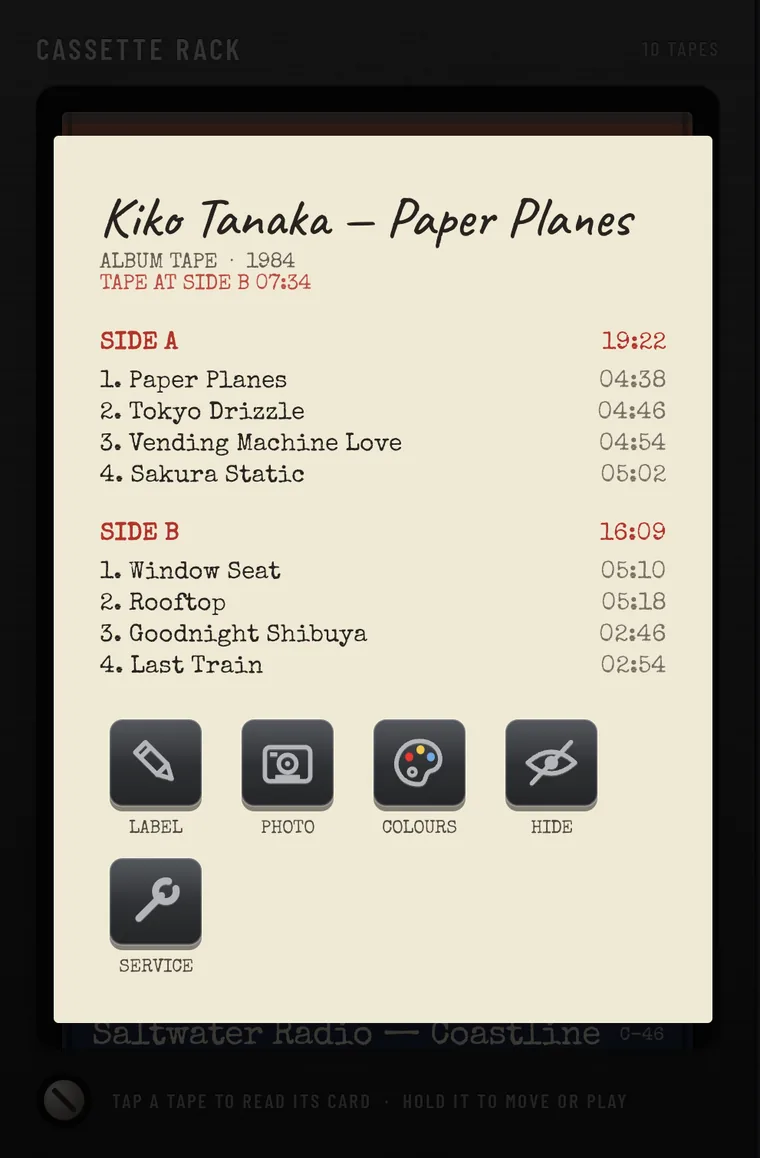
Every tape has a card, like the paper insert in a cassette case. It shows the label, whether it's an album or artist tape, the year, where the tape is (TAPE AT SIDE B 07:34) and the song list for each side with its running time.
The keys along the bottom:
- LABEL rename the tape. More
- PHOTO print a cover picture on the shell. More
- NO PHOTO take the picture off (only when there is one).
- COLOURS pick shell and case colours. More
- HIDE take the tape off the rack. More
- SERVICE put it on the maintenance bench. More
Tap outside the card or press Back to close it.
Playing on the cover screen
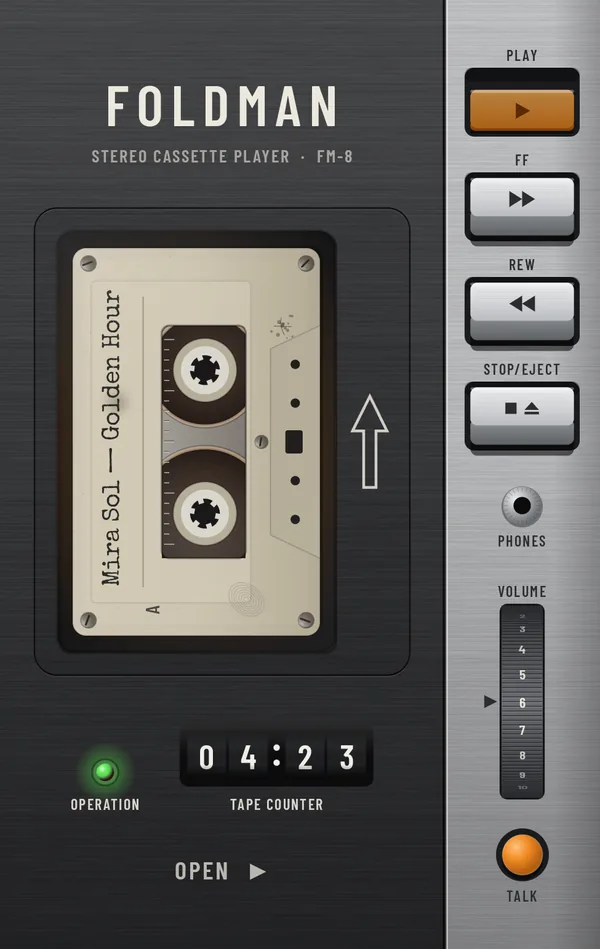
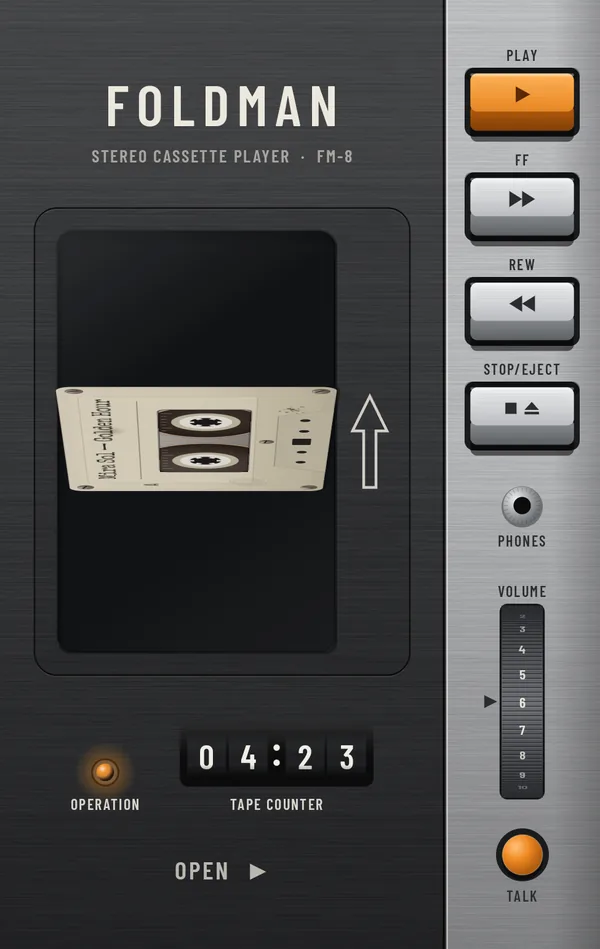
Close the phone. The cover screen is your player. This is the FM-8 Classic; every other body has the same parts in its own place.
- Cassette window. Shows the loaded tape, its reels turning while it plays. Hold it to eject. Slide two fingers across it to turn the tape over.
- PLAY. Starts the tape. It stays down while the tape runs. Pressing it again does nothing: PLAY isn't a pause key.
- FF and REW. Hold to wind forward or back, silently. Let go mid-song and it carries on playing. Winding stops at the end of the side.
- STOP/EJECT. Press once to stop. Press again, while stopped, to eject.
- Tape counter. Minutes and seconds into the current side.
- OPERATION light. Red: no tape. Amber: tape loaded. Green, pulsing: playing.
- VOLUME. Turn the wheel to set the phone's media volume. Hold it to mute.
- TALK. Mutes the sound. Move the volume to bring it back.
- PHONES. A plug appears in the socket when headphones are in use, wired or Bluetooth.
Turn the tape over
Put two fingers on the tape and slide them across it, the way you'd flip a real cassette: up or down when the tape stands upright, left or right when it lies flat. It tips over under your fingers. Let go past halfway, or flick, and it turns; let go early and it falls back.
Turning over works on the cover window and on the tape in the open deck. The tape keeps its physical place, so the end of side A is the start of side B, and the middle stays the middle. The music stops while you turn it; press PLAY to carry on.
At the end of a side
Like a real deck, the tape stops at the end of the side and PLAY pops up with a clunk. Turn the tape over to hear side B. To have Foldman turn it for you and keep playing, set AUTO REVERSE to ON.
Skipping songs
The cover has no skip keys, just like the real thing: hold FF or REW to wind. To jump a whole song, use the next and previous buttons in the notification, on the lock screen, or on your headphones or car stereo. Next cues the next song on this side; previous goes back to the start of the song, or to the song before if you're within its first three seconds.
Every tape remembers its place
Eject a tape halfway through side B and it's still halfway through side B next time, even after a restart. If Android closes Foldman, your tape is back in the deck when you return, stopped.
Bodies and finishes
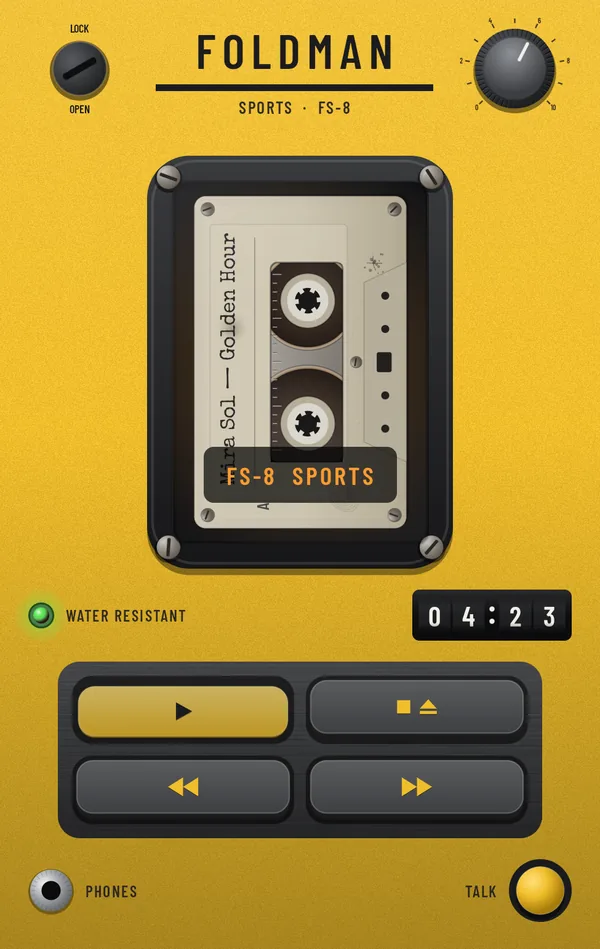
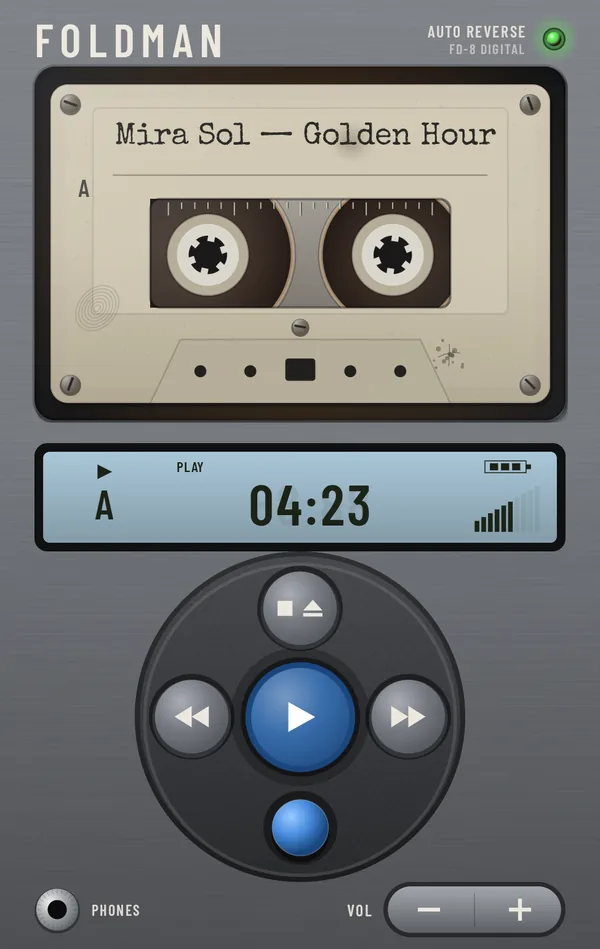
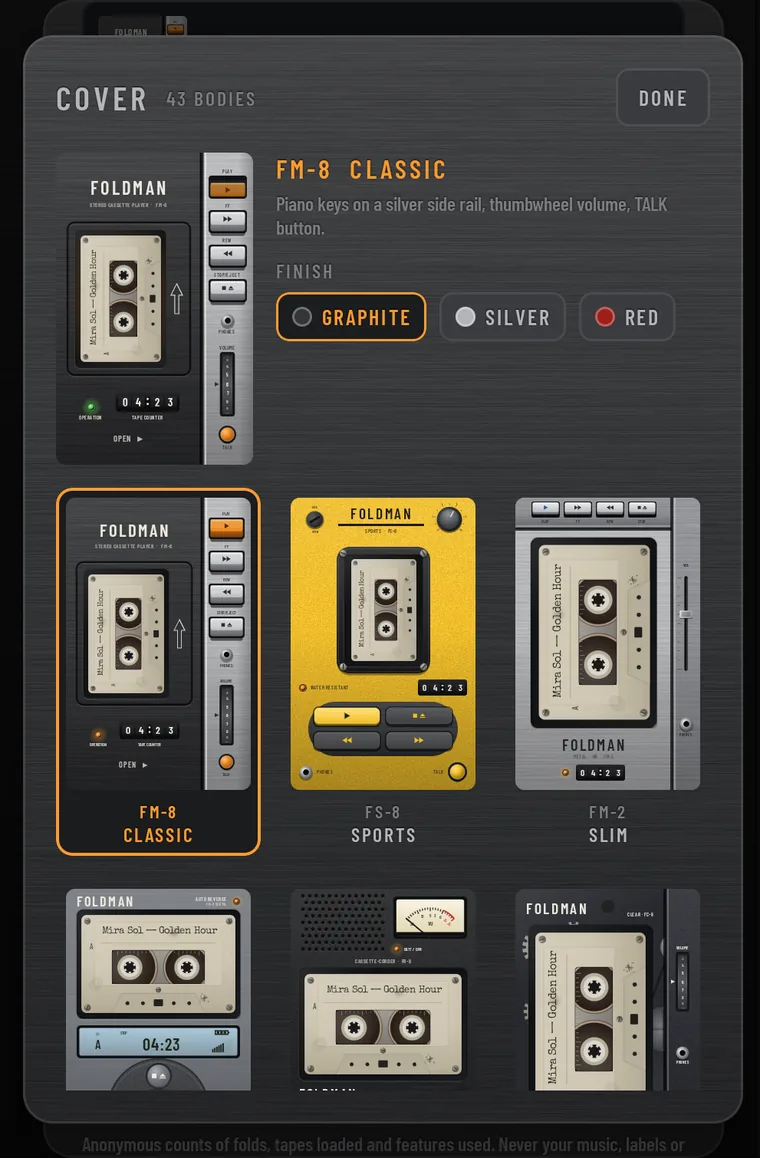
The cover screen can wear any of 43 bodies, from a 1960s recorder with one joystick key to an all-glass deck with its gears on show. Most come in two to four finishes. See them all on the Foldman page.
Swipe on the cover
- Three fingers right or left: the next or previous body.
- Three fingers up or down: the next or previous finish of this body.
The new name shows for a moment, for example FS-8 SPORTS. Three fingers never press a key or turn the tape over, so you can swipe anywhere.
Pick from the catalogue
Open the phone, open the service hatch, and tap CHANGE next to COVER. Tap a body, pick a FINISH, then DONE. The cover changes straight away.
Every body has the same controls. On bodies without a TALK button, hold the volume control to mute. Bodies with a REC key keep it locked: these are your tapes, Foldman won't record over them.
Make a tape yours
Everything here starts from a tape's J-card: open the phone and tap the tape in the rack.
Write the label
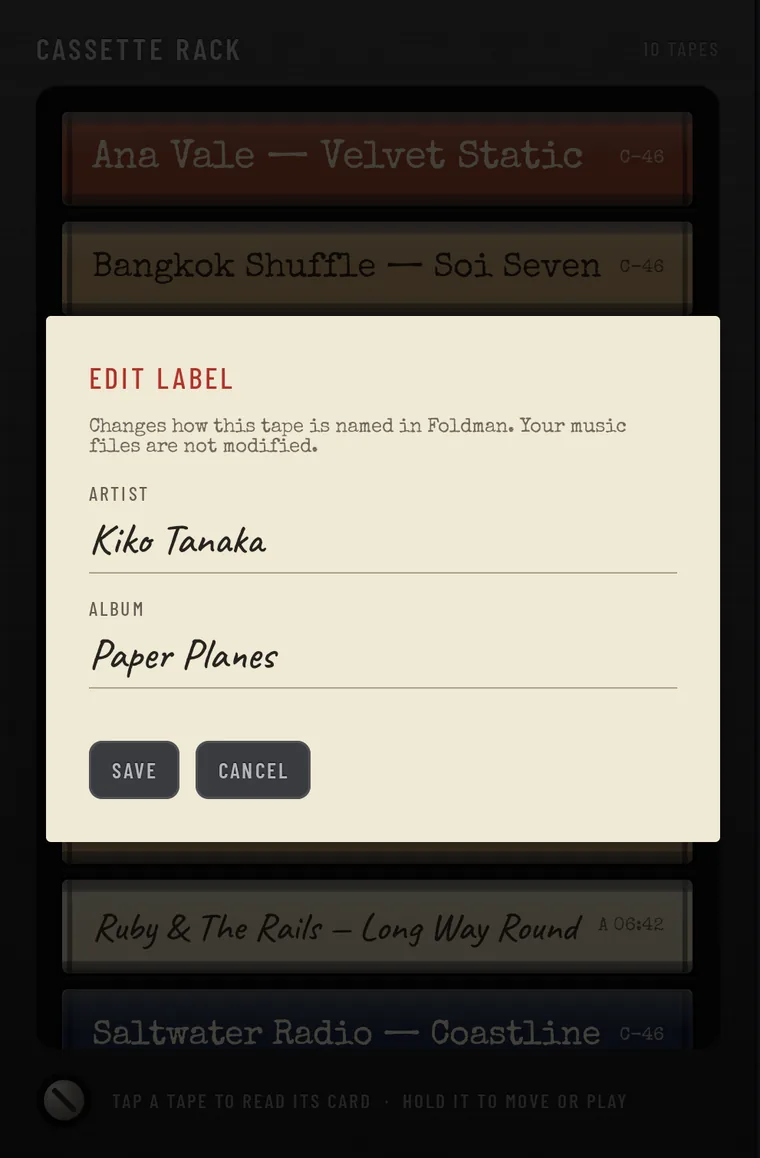
Tap LABEL, fix the ARTIST and ALBUM, and SAVE. Leave a field empty to keep what the file says. RESET goes back to the file's own tags.
This only changes how the tape is named in Foldman. Your music files are never modified. The LABEL key on the card is marked once a label has been edited.
Print a cover photo on the shell
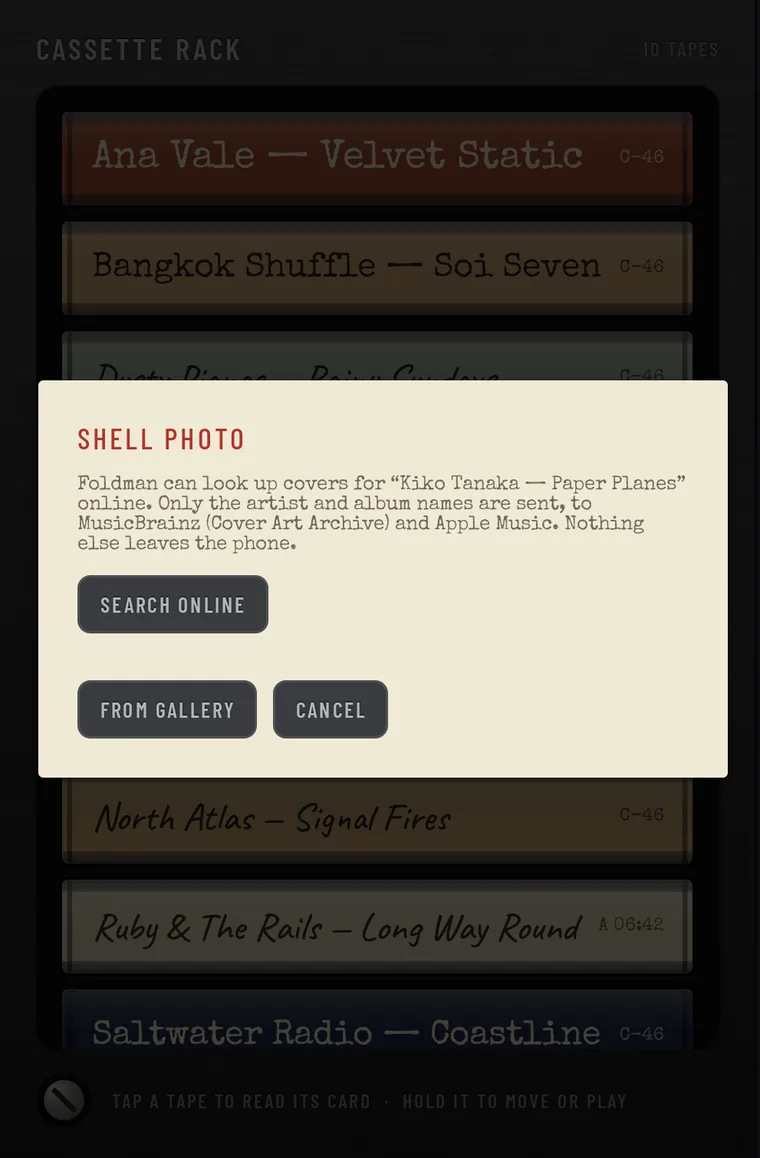
Tap PHOTO. You have two ways to get a picture:
- SEARCH ONLINE looks the album up and shows up to five covers, sure matches first. Tap one to print it on the shell. Nothing is looked up until you press the button, and only the artist and album names are sent, to MusicBrainz (Cover Art Archive) and Apple Music. No match? Fix the spelling with LABEL and try again; Foldman also offers the artist's other records.
- FROM GALLERY uses any photo on your phone.
After you pick one, ADJUST PHOTO opens: pinch the cassette to resize the picture and drag to move it, or use SMALLER, BIGGER and the arrow keys. SAVE when it sits right. Open PHOTO again later to ADJUST or REMOVE PHOTO.
Shell and case colours
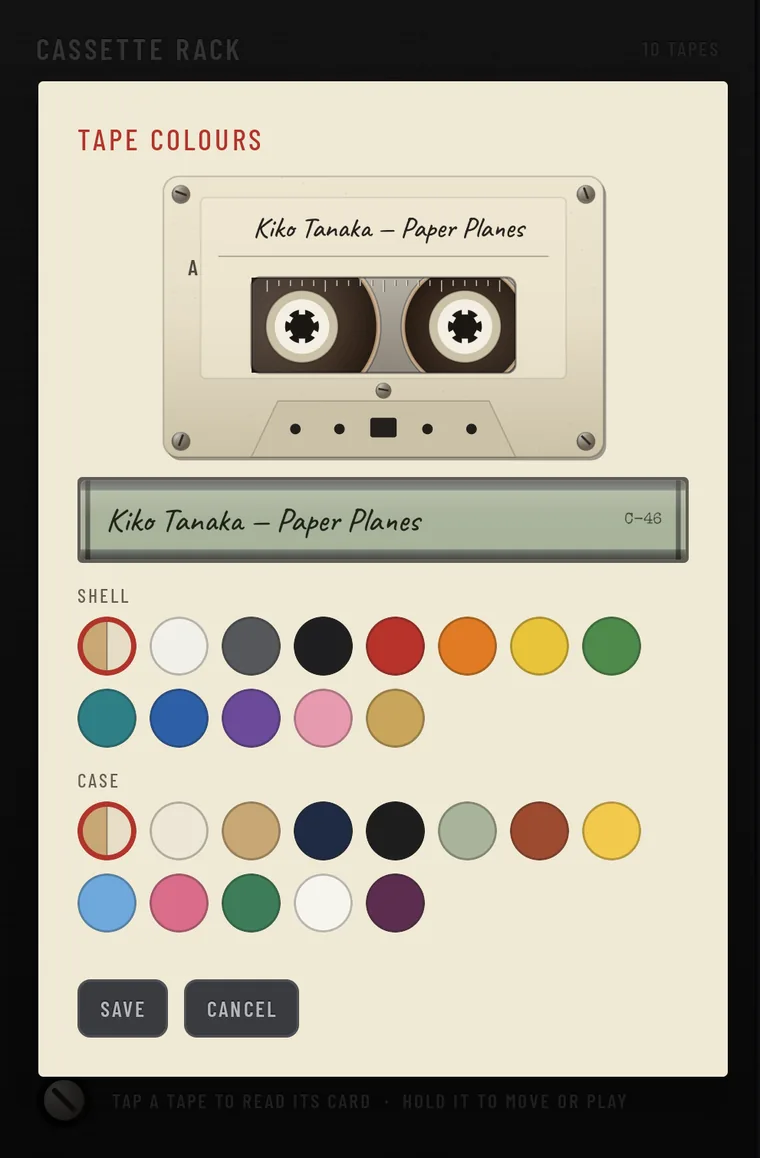
Tap COLOURS. Pick a SHELL colour for the cassette (white, smoke, black, red, orange, yellow, green, teal, blue, purple, pink or gold) and a CASE colour for its spine in the rack (paper, kraft, navy, black, sage, brick, lemon, sky, rose, pine, white or plum). AUTO leaves it to Foldman. The preview updates as you tap; SAVE to keep it.
Hide a tape
Tap HIDE to take a tape off the rack without touching its files. Hidden tapes are listed in the service hatch under HIDDEN TAPES; tap PUT BACK to return one.
The service hatch
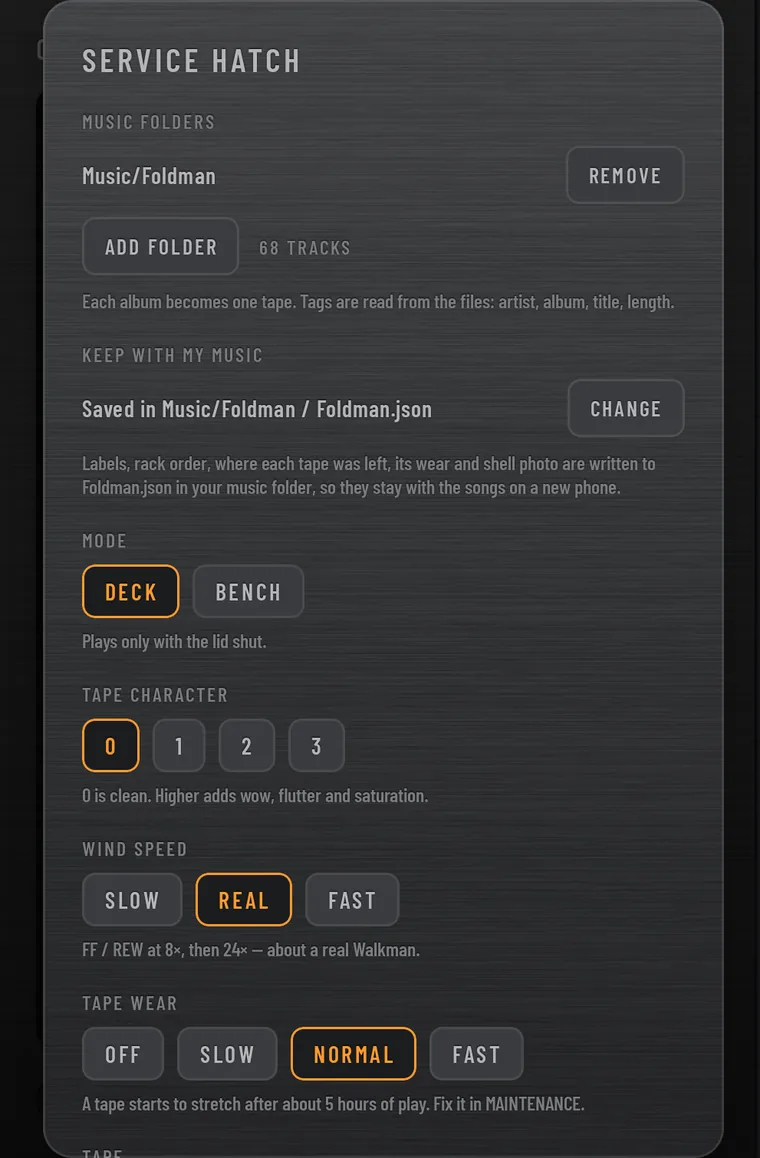
All of Foldman's settings live behind one screw. Open the phone and tap the screw head at the bottom left of the rack. CLOSE HATCH or Back closes it again. Changes apply as soon as you tap them.
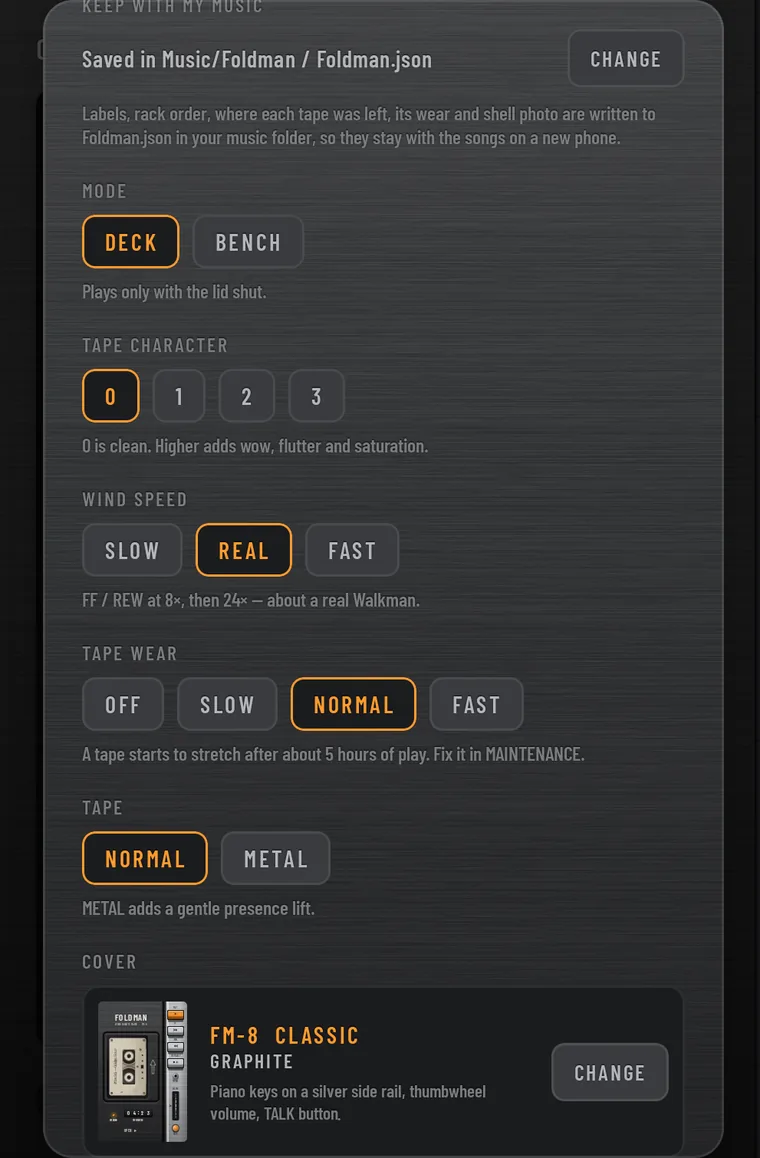
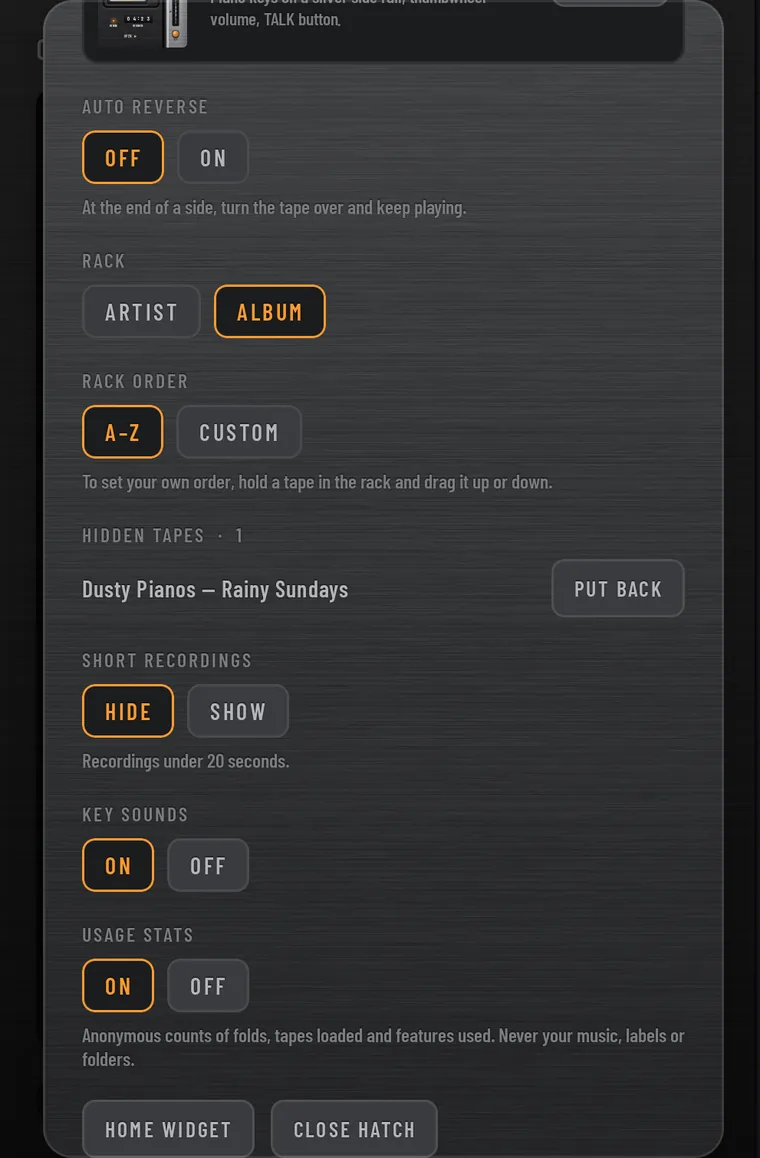
| Setting | Choices | What it does |
|---|---|---|
| MUSIC FOLDERS | ADD FOLDER · REMOVE | Which music becomes tapes. With no folders, all music on the phone. See All music, or only some folders. |
| KEEP WITH MY MUSIC | CHOOSE MUSIC FOLDER · CHANGE | Saves your labels, rack order, tape places, wear and photos in a Foldman.json file next to your music. See Keep it with your music. |
| MODE | DECK default · BENCH | DECK plays only with the lid shut. BENCH also plays with the phone open: PLAY and STOP appear under the deck. |
| TAPE CHARACTER | 0 default · 1 · 2 · 3 | 0 is clean. Higher numbers add wow, flutter and saturation, the gentle wobble and warmth of a real tape. |
| WIND SPEED | SLOW · REAL default · FAST | How fast FF and REW run: SLOW 3×, then 8×; REAL 8×, then 24×, close to a real portable; FAST 16×, then 60×. The higher speed kicks in after you've held the key for a second and a half. |
| TAPE WEAR | OFF default · SLOW · NORMAL · FAST | Whether tapes age as you play them, and how quickly. See Tape wear. |
| TAPE | NORMAL default · METAL | METAL adds a gentle lift to the treble, like metal-particle tape. |
| COVER | CHANGE | The body and finish the cover screen wears. See Bodies and finishes. |
| AUTO REVERSE | OFF default · ON | At the end of a side, turn the tape over and keep playing from the start of the other side. |
| RACK | ARTIST · ALBUM default | One tape per album, or one per artist. |
| RACK ORDER | A–Z default · CUSTOM | Alphabetical, or your own order. Hold a tape in the rack and drag it to set it. |
| SHORT RECORDINGS | HIDE default · SHOW | Recordings under 20 seconds. |
| KEY SOUNDS | ON default · OFF | The clicks, clunks and springs of the keys, lid and eject. Vibration stays on. |
| USAGE STATS | ON default · OFF | Anonymous counts of folds, tapes loaded and features used. Never your music, labels or folders. See Privacy. |
| HOME WIDGET | button | Asks your home screen to add the Foldman widget. See Home screen widget. |
Tape wear and the maintenance bench
Turn on TAPE WEAR and tapes you love start to show it. It's off until you choose a speed.
How tapes age
- Stretch: after many hours of play the tape stretches. You can hear it: a slow, dragging wobble in the pitch, duller treble, a little more grit. It starts after about 20 hours (SLOW), 5 hours (NORMAL) or 10 minutes (FAST, for trying it out). A night in the fridge fixes it.
- Dirt: smudges build up on the shell the more you play. Rub them off on the bench.
- Yellowing and scratches: the shell slowly yellows and scuffs. These are for keeps, like the real thing.
Each tape ages only from its own playing time. Turn TAPE WEAR back to OFF and every tape looks new again.
The maintenance bench
On a tape's J-card, tap SERVICE. The tape comes out big across both pages. If it was playing, the deck stops first.
- Wind it by hand: put a finger in a hub and turn it. The counter shows where you are. Flick a hub and it spins on its own until friction stops it, or the tape goes tight at the end.
- Clean it: rub a dirt spot with your finger until it's gone.
- TURN OVER shows the other side, at the matching place on the tape.
- PUT IN THE FRIDGE appears when the tape is stretched. It chills for a few seconds (CHILLING · 8 counts down) and comes back RESTORED.
- DONE saves where you wound the tape to. If it's the tape in the deck, it's cued there, stopped.
Press DONE before you close the phone. Folding it while the bench is open puts the tape back without saving the hand winding.
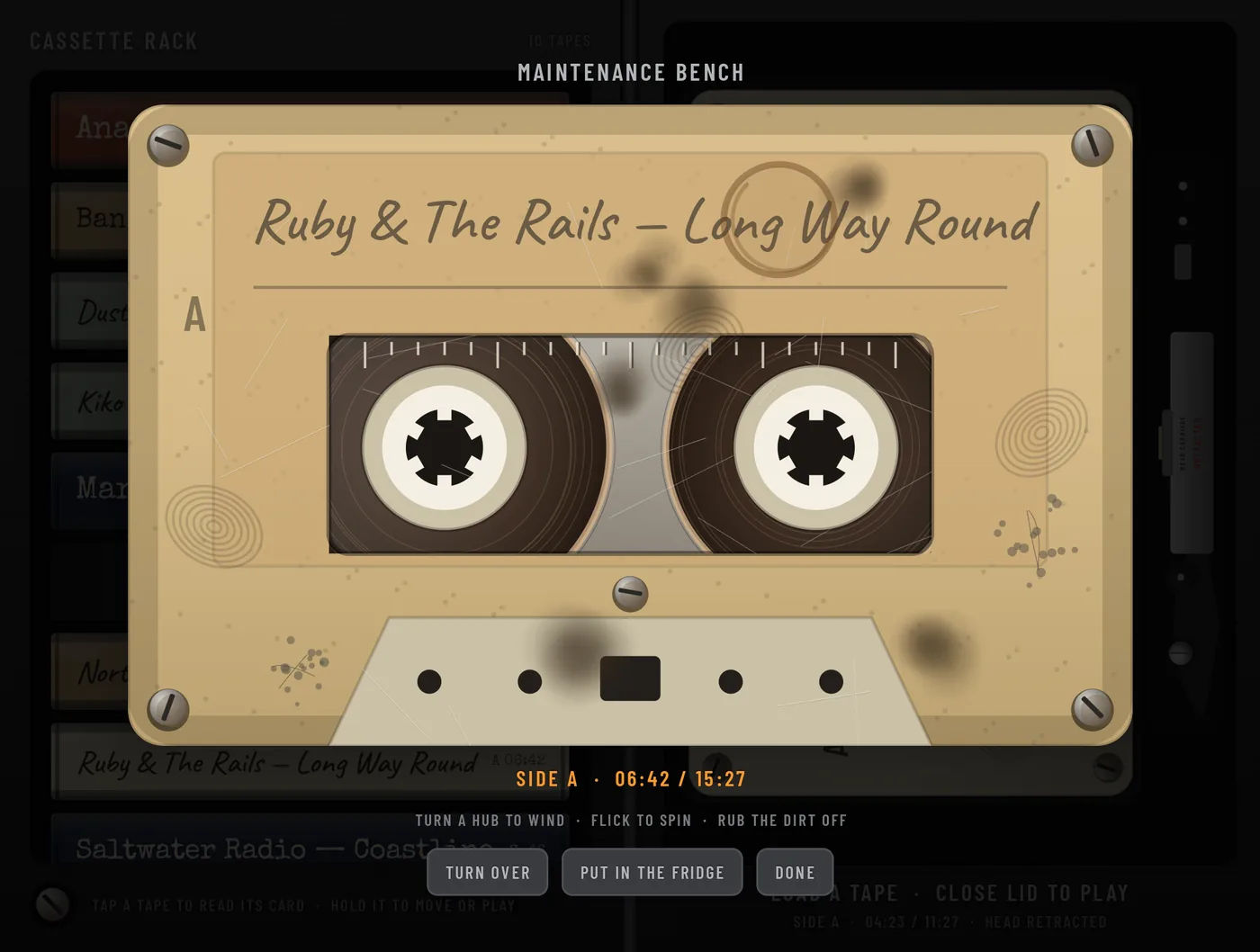
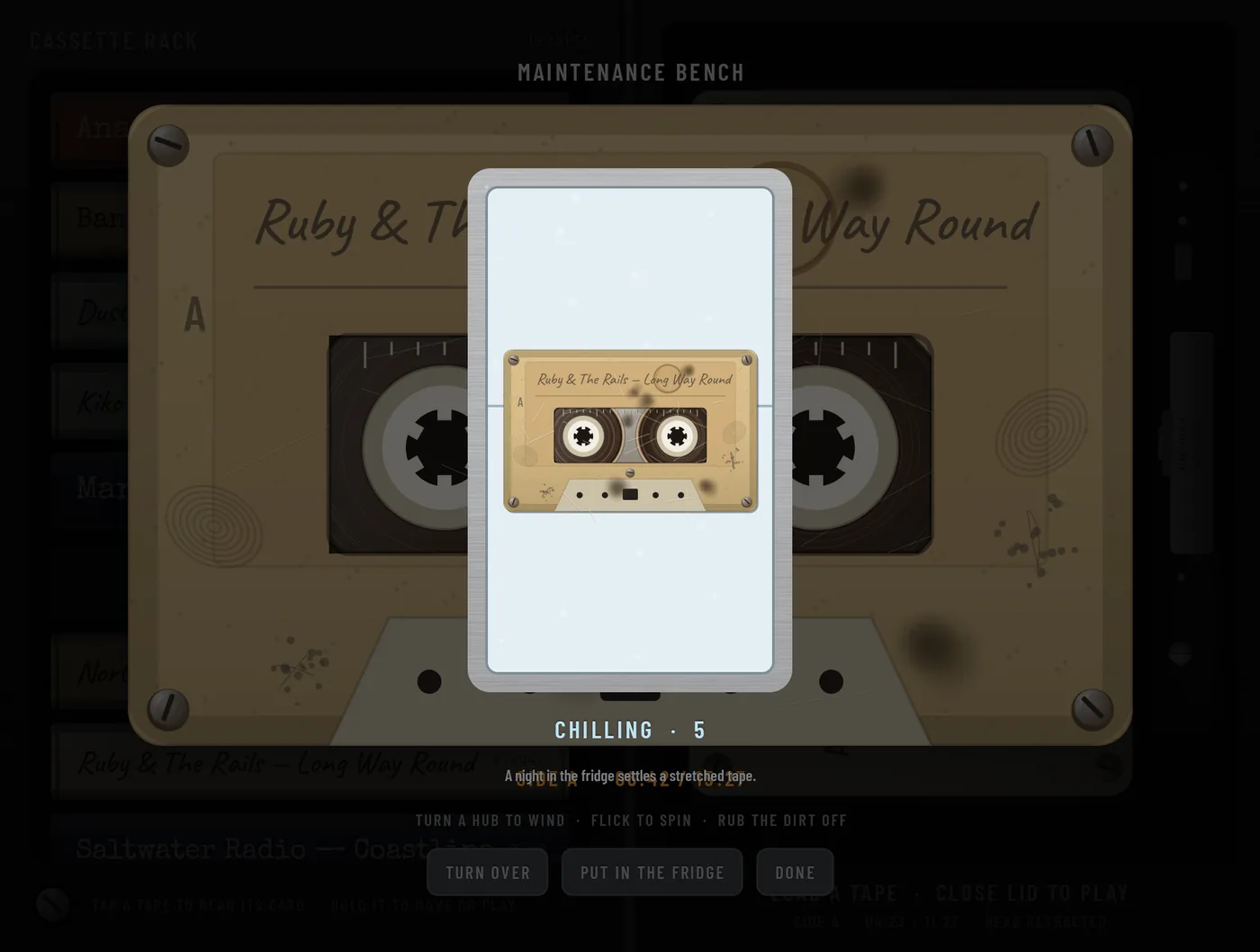
Outside the app
Notification, lock screen, Bluetooth and headphones
While a tape is in the deck, Foldman shows a media notification with the tape's label, the side and song (SIDE A · Paper Moon Girl) and a picture of the cassette. Its controls, the lock screen's, and the buttons on headphones, smartwatches and car stereos all work the deck:
- Play presses PLAY. Pause presses STOP: the tape stops and keeps its place.
- Next and previous skip songs on the current side (see Skipping songs).
- There's no progress bar to drag. To move through a side, hold FF or REW.
- Tap the notification to open Foldman.
These controls follow the lid rule too. On a foldable that's open, PLAY won't start the tape unless MODE is BENCH.
Headphones: pulling out wired headphones or disconnecting Bluetooth ones stops the tape, so it never suddenly plays out loud. So does an incoming call. Press PLAY to carry on.
Home screen widget
The widget puts the deck on your home screen: a picture of the loaded tape, its side and state (SIDE A · PLAYING), and ▶ and ■ keys. Tap the tape picture to open Foldman. Add it from your home screen's widget list, or tap HOME WIDGET in the service hatch.
Keep it with your music
Your labels, rack order, cover photos and where each tape was left can live in a small file, Foldman.json, in your music folder. Copy the folder to a new phone and everything comes with the songs.
Open the service hatch
Open the phone and tap the screw at the bottom left of the rack.
Choose the folder
Under KEEP WITH MY MUSIC, tap CHOOSE MUSIC FOLDER and pick the folder your music lives in. Android asks you to allow Foldman to use it.
Done
The hatch now says Saved in Music/… / Foldman.json. Before you choose, it says Only inside Foldman for now.
- If you added a music folder, Foldman already uses the first one for Foldman.json.
- The file is saved a few seconds after you change a label, the rack order, a photo or colours. Tape places and wear are saved about once a minute.
- Cover photos are kept beside it in a Foldman/shells folder.
- Changes made elsewhere, such as on another phone or in the CD player, are merged, not overwritten.
Shared with Foldman - CD player
Pick the same folder in Foldman - CD player and both apps share one library: labels, cover photos, hidden items and rack order. A cover found in one shows up in the other.
Phones that don't fold
On an ordinary phone there's no hinge, so the cassette door does the job of the lid. Everything else in this guide works the same, with door in place of lid.
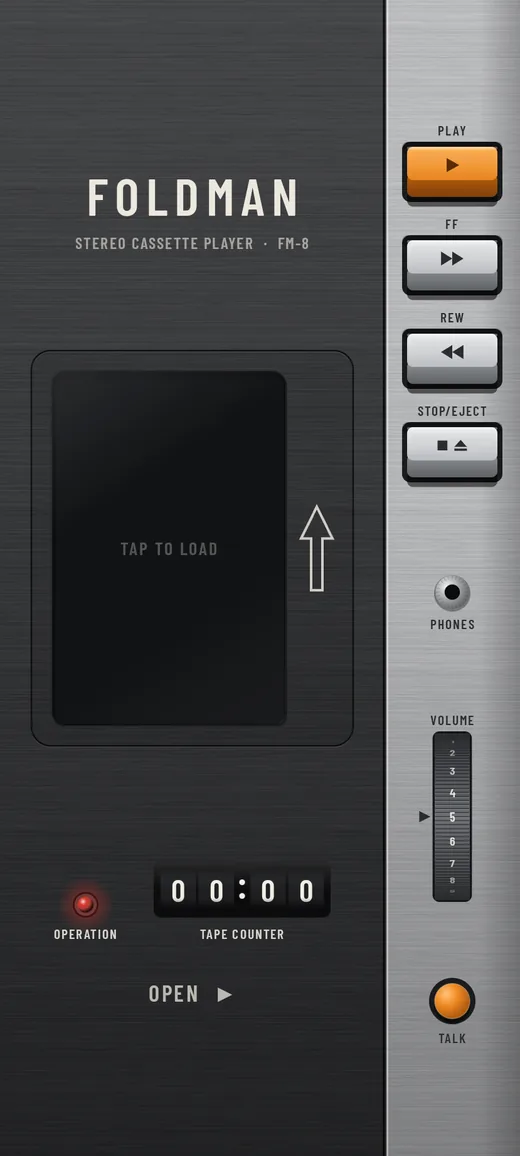
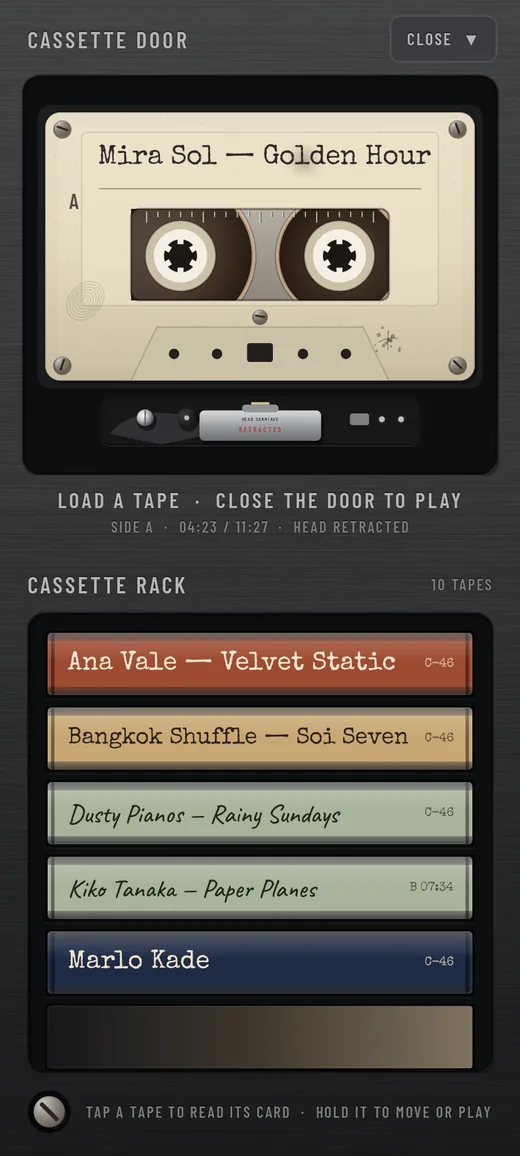
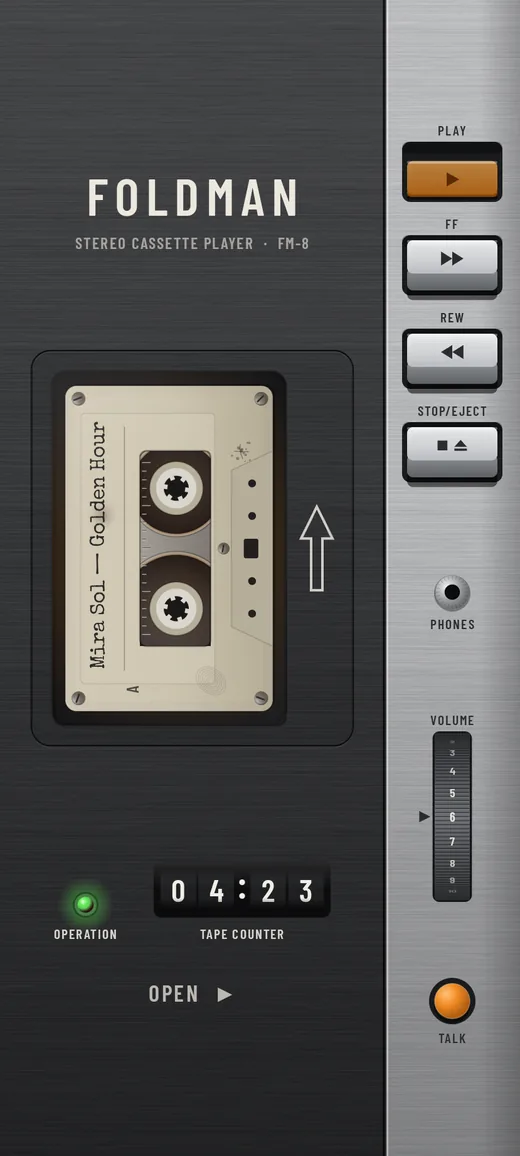
- Open the door: tap the cassette window (or OPEN ▶ on the Classic body), or eject with STOP pressed twice. Like a real player, the door stays locked while the tape moves: stop it first.
- Load: hold a tape in the rack and drop it in the deck. The door shuts by itself.
- Close the door: tap CLOSE ▼, or press Back. The door also shuts when you leave the app, so the notification and widget can play.
- Setup is one step: allow music access. The cover-screen setting doesn't apply.
Privacy and usage stats
- Your music stays on your phone. Foldman doesn't upload songs, tags, labels, folder names or anything you type.
- Usage stats are anonymous counts that help us improve Foldman: folds, tapes loaded, features used, minutes listened. They never include your music, labels or folders. No advertising ID is used, and nothing more precise than your country is kept. Turn them off with USAGE STATS › OFF in the hatch.
- Cover search sends only the artist and album names, and only when you press SEARCH ONLINE.
- Editing a label never changes your music files.
The full details are in the privacy policy.
All gestures at a glance
| Where | Gesture | What it does |
|---|---|---|
| Rack | Tap a tape | Opens its J-card |
| Rack | Hold a tape, then drag | Drop on the deck to load it; up or down the rack to move it |
| Deck (open) | Double-tap the tape | Ejects it to the rack |
| Deck (open) | Hold the tape | Opens its J-card |
| Deck or cover | Two fingers across the tape | Turns it over |
| Cover | Hold the cassette window | Ejects the tape |
| Cover | Three fingers left or right | Previous or next body |
| Cover | Three fingers up or down | Next or previous finish |
| Cover | Hold FF or REW | Winds the tape |
| Cover | STOP, then STOP again | Stops, then ejects |
| Cover | Hold the volume control | Mutes |
| Bench | Turn a hub with a finger | Winds the tape; flick to let it spin |
| Bench | Rub the shell | Cleans off dirt |
| Photo | Pinch or drag the cassette | Resizes or moves the cover photo |
| Phone | Tap the cassette window | Opens the door (when stopped) |
With TalkBack, the tape in the deck and on the cover offers a Turn the tape over action, and each rack tape offers Load into deck.
Questions and fixes
The music stops when I open the phone.
That's the lid doing its job: on a cassette player, opening the door stops the tape. To keep listening with the phone open, set the hatch's MODE to BENCH.
Nothing plays when I close the phone, or the app disappears.
Continue apps on cover screen is off for Foldman, so Android locks the phone when you close it. On a Galaxy, open Settings › Display › Continue apps on cover screen and turn on Foldman - Cassette player; on a Pixel, set the same option to Always. Then press PLAY on the cover. Closing the phone never starts the tape by itself.
PLAY does nothing.
Check that a tape is loaded (the light is amber, not red) and that you're not at the very end of the side: turn the tape over or rewind. With the phone open, PLAY only works in BENCH mode.
The rack is empty.
Foldman needs music files on the phone and permission to read them. Open the hatch and tap ALLOW MUSIC ACCESS. If Android doesn't ask any more, go to Android Settings › Apps › Foldman › Permissions › Music and audio and allow it. Or add your music folders with ADD FOLDER, which needs no permission. Songs from streaming apps can't be played: they stay locked inside those apps.
Some songs or albums are missing.
Recordings under 20 seconds are hidden: set SHORT RECORDINGS to SHOW. Check HIDDEN TAPES in the hatch. If you picked music folders, only those folders are read.
An album is split across two tapes, or two albums share one.
Foldman groups by the album and album artist tags. Fix them in your music files, or rename a tape with LABEL. For compilations, set the album artist to "Various Artists".
The music stopped by itself.
The tape reached the end of the side (turn it over, or turn on AUTO REVERSE), headphones were unplugged or disconnected, or a call came in. Press PLAY to carry on.
The sound wobbles and sounds dull.
The tape is stretched from lots of play. Open its J-card, tap SERVICE, then PUT IN THE FRIDGE. Or set TAPE WEAR to OFF. If every tape wobbles, check TAPE CHARACTER: 0 is clean.
Where are the next and previous track keys?
A cassette player doesn't have them. Hold FF or REW to wind, or use next and previous in the notification, on the lock screen or on your headphones.
What's the blank tape at the end of the rack?
A mixtape maker is on its way. That's its spot.
How do I move everything to a new phone?
Turn on KEEP WITH MY MUSIC before you move, copy the music folder (with Foldman.json and Foldman/shells) to the new phone, install Foldman, and choose the same folder.
Still stuck? Write to hello@appxygen.com or use the contact page.
back to the top ↑