AP-7 user guide
AP-7 turns your phone into a pocket field recorder. Press ● and it's recording. Grab the reel to scrub, turn a tape into text, and let brain AI sum it up. This booklet covers every key, gesture and setting, with pictures.
Getting started
AP-7 records through your phone's microphone into plain WAV files that stay on your phone. There's no account to make and nothing to set up before your first take.
1. Install
Get AP-7 from Google Play. It's made for the Galaxy Z Fold 8 and needs Android 14 or newer.
2. Make your first take
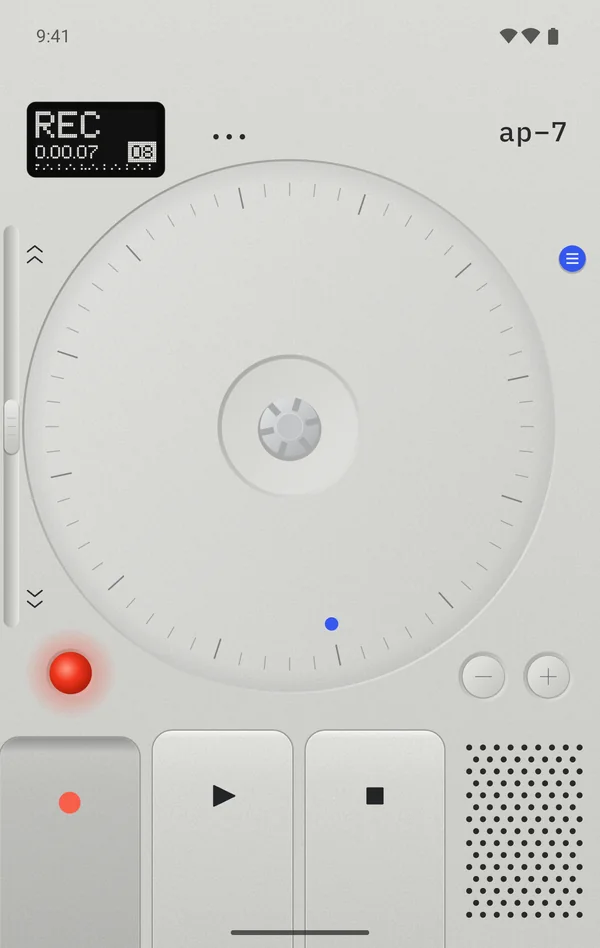
Open AP-7 and press ●, the key at the bottom left. The first time, Android asks to let AP-7 use the microphone, and to show notifications. Allow both: the notification is what keeps a take rolling with the screen off.
The red lamp lights, the display says REC and the clock starts. Press ■ when you're done. The take is saved at once and loaded, ready to play with ▶.
3. Keep it on the cover screen
AP-7 is happiest on the outside (cover) screen, where it looks most like a real recorder. If AP-7 disappears or the phone locks when you close it, open Settings › Display › Continue apps on cover screen and turn it on for AP-7. A take never stops because you fold or unfold the phone.
That's it. Everything else in this booklet is about finding your way around tapes you've already made.
Two screens
The Fold 8's cover screen has nearly the proportions of a real pocket recorder, so closed, it's just the recorder. Open it and the same recorder sits beside your tapes.
Closed: the recorder
The cover screen shows the face alone, held upright. The tape list opens over it when you ask for it (the M key, or a tap on the display) and closes with ✕ or Back.
Open: the recorder and your tapes
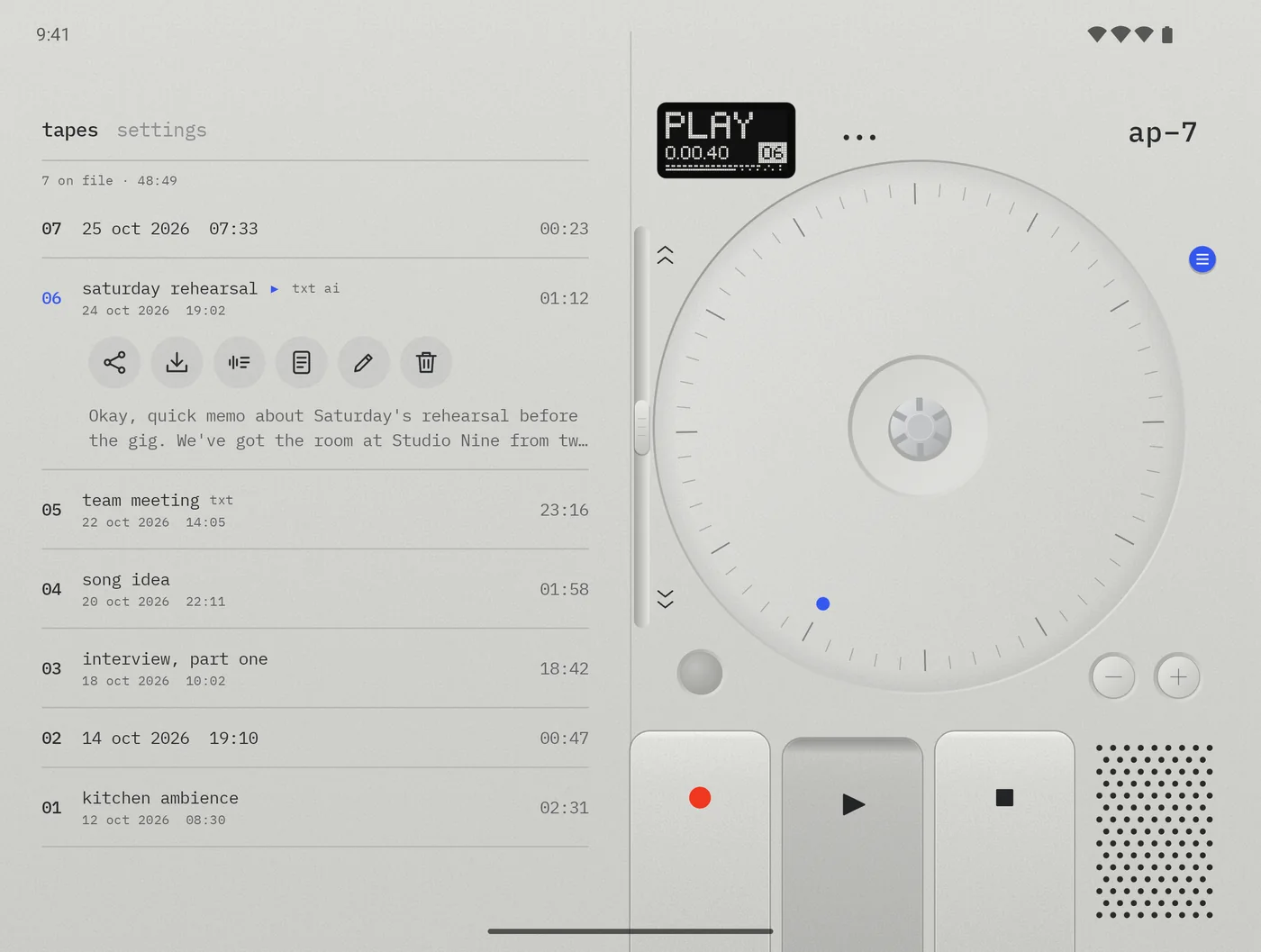
The inner screen splits at the crease. Your tapes and the settings are on the left page, always there; the recorder is on the right, the same size and shape as on the cover. Here the M key and the display don't need to open anything.
The face, part by part
Every control is on the face, like the hardware. Keys act the moment your thumb lands, with a click you can feel, and ● and ▶ stay pressed down while they run.
- Display. What the recorder is doing, the time, the tape number and a level meter. See Reading the display. On the cover screen, tap it to open the tape list.
- M key (the round key on the right edge). Opens the tape list on the cover screen.
- Lever (the slider down the left edge). Hold it up, by ︽, to wind forward; hold it down, by ︾, to rewind. Both go at 8×, and you hear the tape wind.
- Reel. Turns with the tape. Put a finger on it to hold the tape, turn it to scrub. See The reel.
- Record lamp. Red while recording; it blinks while the take is paused.
- − and +. The previous or next tape.
- ● record. Starts a take. Press again to pause, and again to carry on.
- ▶ play. Plays the loaded tape; press again to pause.
- ■ stop. Stops, and ends a take. Press it again to go back to the top of the tape.
The speaker grille and the three holes by the display are only drawn on. AP-7 records through the phone's microphone and plays through its speaker or your headphones.
Two finishes
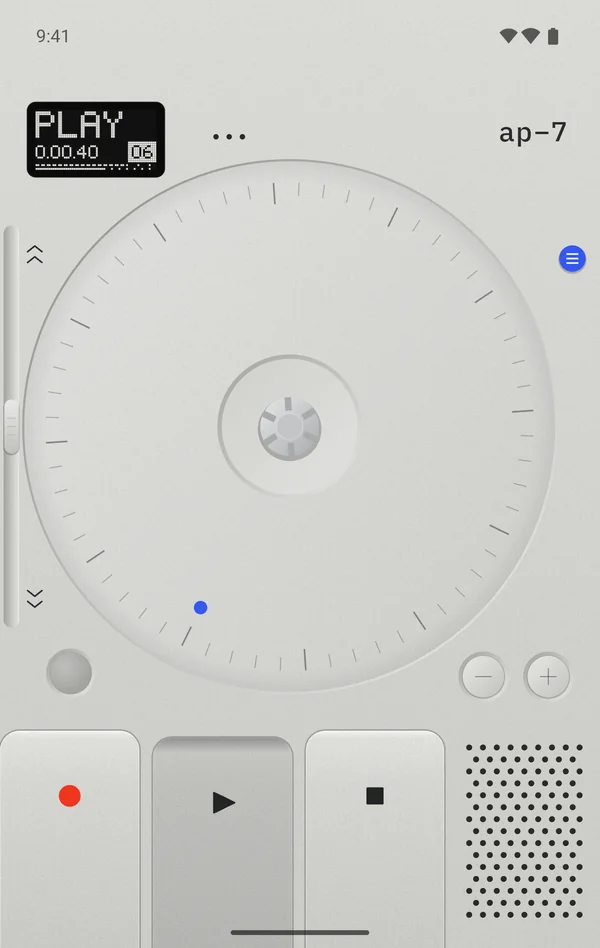
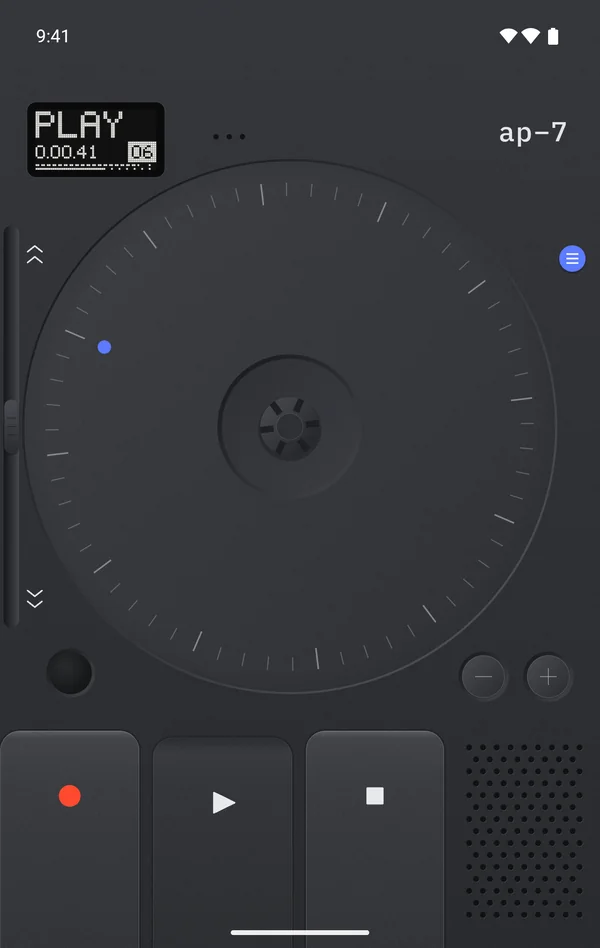
The face comes in silver and graphite. Pick one in Settings › skin; the controls are the same in both.
Reading the display
A 64×32 dot screen, read from the top: one big word for what's happening, the time, the tape number, then the level meter and the tape line.
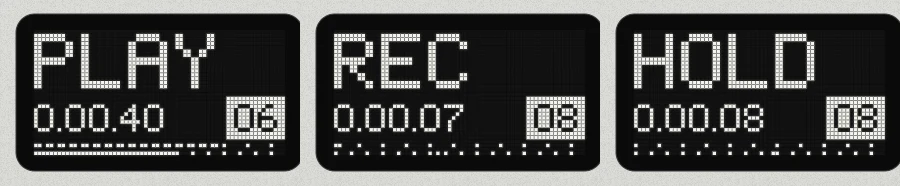
- The time reads hours.minutes.seconds: 0.00.40 is forty seconds in. While recording, it's the length of the take so far.
- The number in the box is the tape: 06 is the sixth tape in the list. While recording it's the number the new take will get.
- The level meter under the time shows how loud it is, with a dot that holds the latest peak for a moment.
- The tape line at the very bottom fills in as the tape plays. While recording, a dot runs along it.
| Word | What it means |
|---|---|
| REC | Recording. |
| PAUSE | The take is paused with ●. Blinks. Press ● to carry on. |
| HOLD | Your finger is on the reel while recording: the take is paused until you let go. Blinks. |
| PLAY · STOP | Playing, or stopped. |
| FWD · REW | Winding forward or back with the lever. |
| SCRUB | Your finger is on the reel. |
| EMPTY | No tapes yet. |
| NO MIC | AP-7 can't use the microphone. See Questions and fixes. |
| TAPE FULL | The take reached its longest, 5 hours 47 minutes, and was saved. |
| REC ERROR | The microphone stopped giving sound and the take was ended and saved. |
| BAD TAPE | That file can't be read as a tape. |
| NO RENAME | A tape couldn't be renamed. |
Recording
One key starts it, and nothing you do afterwards loses it. Every take is saved as its own tape.
- Start: press ●. If a tape was playing, it stops first.
- Pause and carry on: press ● again. PAUSE blinks and so does the lamp. Press ● once more to carry on in the same take.
- End the take: press ■. The take is saved, gets the next number and is loaded, ready to play.
- While recording, ▶, − and +, the lever and the tape list wait until you stop.
Off the record
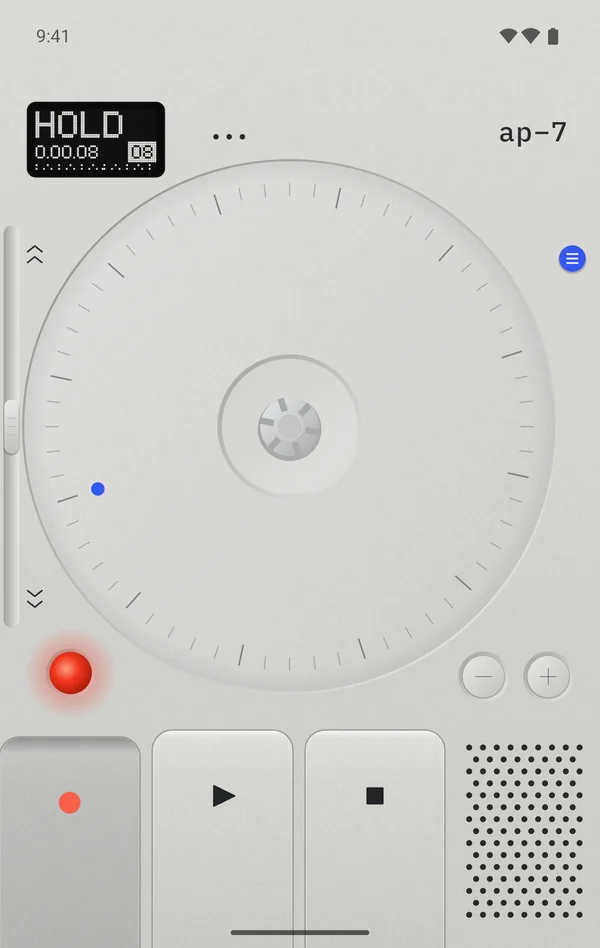
Touch the reel while it's recording and the take pauses for as long as your finger is there: the display says HOLD and the lamp blinks. Let go and it carries on. It's the quickest way to leave out a cough, a name or a phone call, without ending the take.
With the screen off, or the phone folded
A take keeps rolling with the screen off, in your pocket, or when you fold or unfold the phone. While it does, a notification says ap–7 recording; tap it to come back. By default AP-7 keeps the screen on while it records or plays; turn that off with keep screen awake.
Sound
- Every take is 48 kHz, 16-bit mono WAV, about 5.8 MB a minute (about 350 MB an hour).
- One take can run for up to 5 hours 47 minutes. Then the display says TAPE FULL and the take is saved.
- Noise reduction records through the phone's voice processing. It's good for speech in a noisy room, but it can colour music and room sound. It's off by default and applies from the next take.
Playing and finding your place
The tape behaves like tape: it spins up when you press play, slows to a stop, and you hear it move when you wind or scrub.
- Play and pause: ▶. At the end the tape stops; press ▶ again to play it from the top.
- Stop: ■. Press ■ a second time to go back to the top.
- Another tape: − and + load the previous and next tape. If one was playing, the next one plays too.
The lever
Hold the slider on the left edge toward ︽ to wind forward or toward ︾ to rewind, both at 8×. The display says FWD or REW and you hear the tape go by. Let go and it goes back to what it was doing: playing, or stopped.
The reel
- Touch it to hold the tape where it is. The display says SCRUB.
- Turn it to move through the tape: clockwise is forward, and one full turn is 3 seconds. You hear it, slowed or sped up like a real reel under your finger, and feel a click every few degrees.
- Let go and a playing tape carries on from there.
To find one sentence in a long tape: wind with the lever until you're close, then turn the reel to land on it exactly.
The tape list
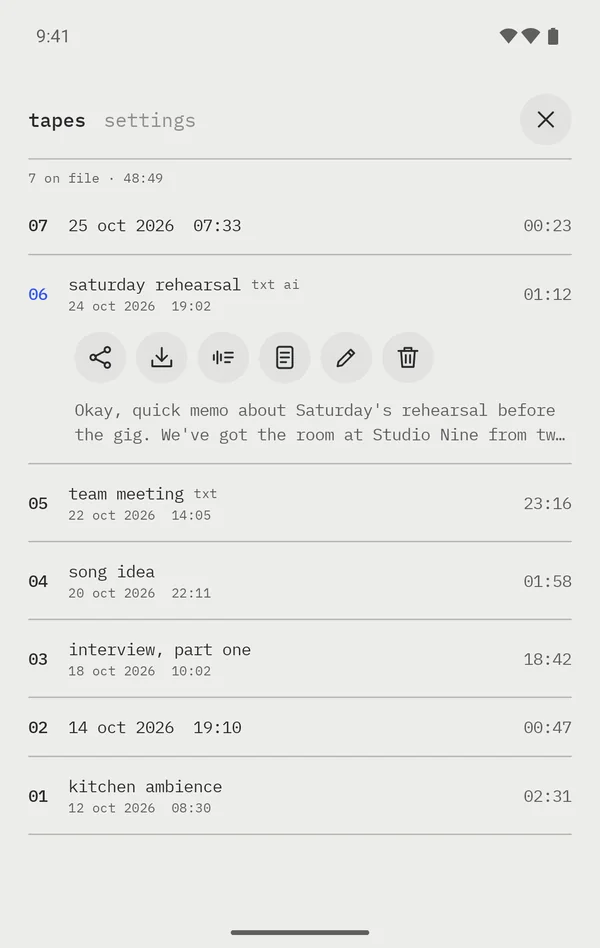
Every take is a numbered tape, the newest at the top. The tapes tab lists them; the line above them says how many there are and how long they last together.
- Open it: on the cover screen, press M or tap the display. ✕ or Back closes it. On the inner screen it's always open on the left page. It doesn't open while recording.
- Each tape shows its number, its title (or, until you give it one, the date and time it was made) and its length.
- ▶ marks the tape that's playing. txt means it has a transcript, ai means brain AI has written something about it, and txt… or ai… means that's under way.
Tap a tape to load it and open its keys. Tap it again to close them. Loading a tape stops the one that was playing.
A tape's keys
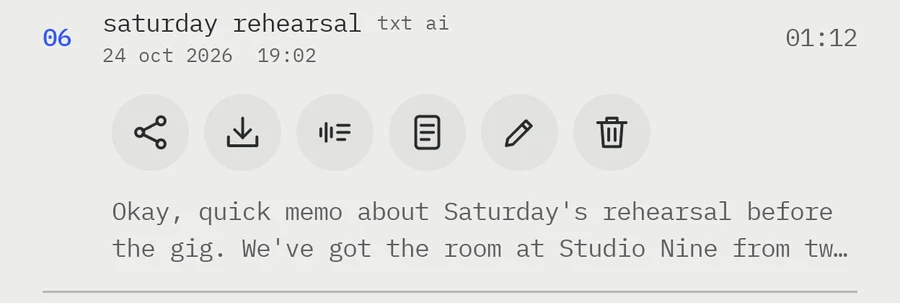
- Share sends the WAV to the app you pick: a chat, email, Drive.
- Export (the arrow into a tray) copies it to the phone's shared Recordings/AP-7 folder, where My Files and a computer over USB can find it. It says exported to Recordings/AP-7 when it's done.
- Transcribe (the sound wave and lines) turns the tape into text. See Tape to text. While it works, the key spins.
- Transcript (the page) opens the transcript full screen. It's only there once the tape has one.
- Rename (the pencil) opens a field for a title, such as team meeting. Tap save. An empty title takes the name off again.
- Delete (the bin): tap once and it turns red with tap again to delete; tap again to delete the tape and its transcript for good.
Under the keys you see the start of the transcript, if there is one. Tap it to read the rest.
Tape to text
AP-7 can send a tape to a transcription service and keep the text with the tape. It's off until you set it up, and a tape only leaves your phone when you press transcribe on it.
Pick a service
Open the settings tab. Under cloud transcription, pick gemini flash, elevenlabs scribe, openai whisper, openai gpt-4o or your server.
Give it your key
Paste your own API key for that service and tap save. The setting tells you where to get one. The saved key shows as its last four characters, with remove beside it. For your server, type its address instead, such as
http://my-pc:8080, save, then test.Transcribe a tape
Open a tape's keys in the list and press transcribe. AP-7 converts the tape to 16 kHz mono and uploads it. When the text comes back, the tape is marked txt and the first lines show under its keys.
- You can leave AP-7 while it works: a notification shows the progress and, if you're elsewhere, says when the transcript is ready. Tap it to open the transcript.
- If something goes wrong, the reason shows in red under the tape's keys, such as no connection; check the network and try again. Tap it to clear it.
- transcribe on a tape that already has a transcript makes a new one in its place.
- Your keys stay on this phone and are left out of backups.
The transcript
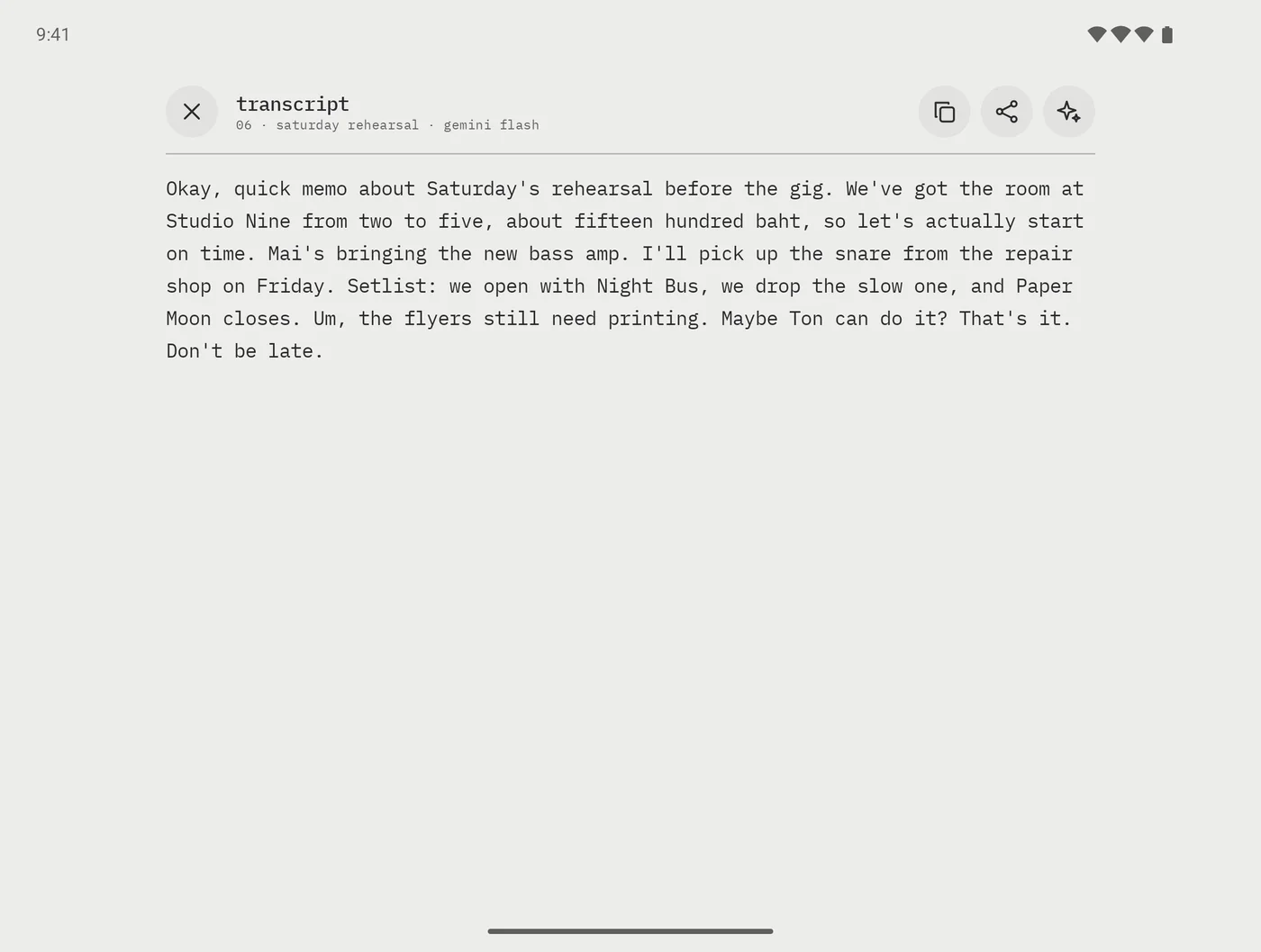
- The line under the title says which tape it is and which service wrote it.
- Copy puts the whole text on the clipboard; share sends it to another app. To take only part, press and hold on the text to select it.
- ✦ opens brain AI.
- ✕ or Back closes it.
Your own server
Rather keep every word at home? AP-7 can send tapes to a whisper.cpp server on your own computer, for example a PC with an NVIDIA GPU that your phone reaches over Tailscale. The AP-7 page shows how to set one up. Plain http:// is fine inside Tailscale, which is already encrypted; use https for anything outside your home network.
Brain AI
Brain AI reads a transcript and writes something from it: a summary, an explanation, a tidier or friendlier version, an article, or a mind map. It runs on your own language model server, not ours.
Set it up
In the settings tab under brain AI, type the address of an OpenAI-compatible server, such as Ollama, llama.cpp, LM Studio or a LiteLLM proxy (for example http://my-pc:11434), its API key if it wants one, and a model name such as gemma4:e4b. Tap save, then test: it checks the server and, if you left the model empty, fills in the first one it has.
Six actions, and your own
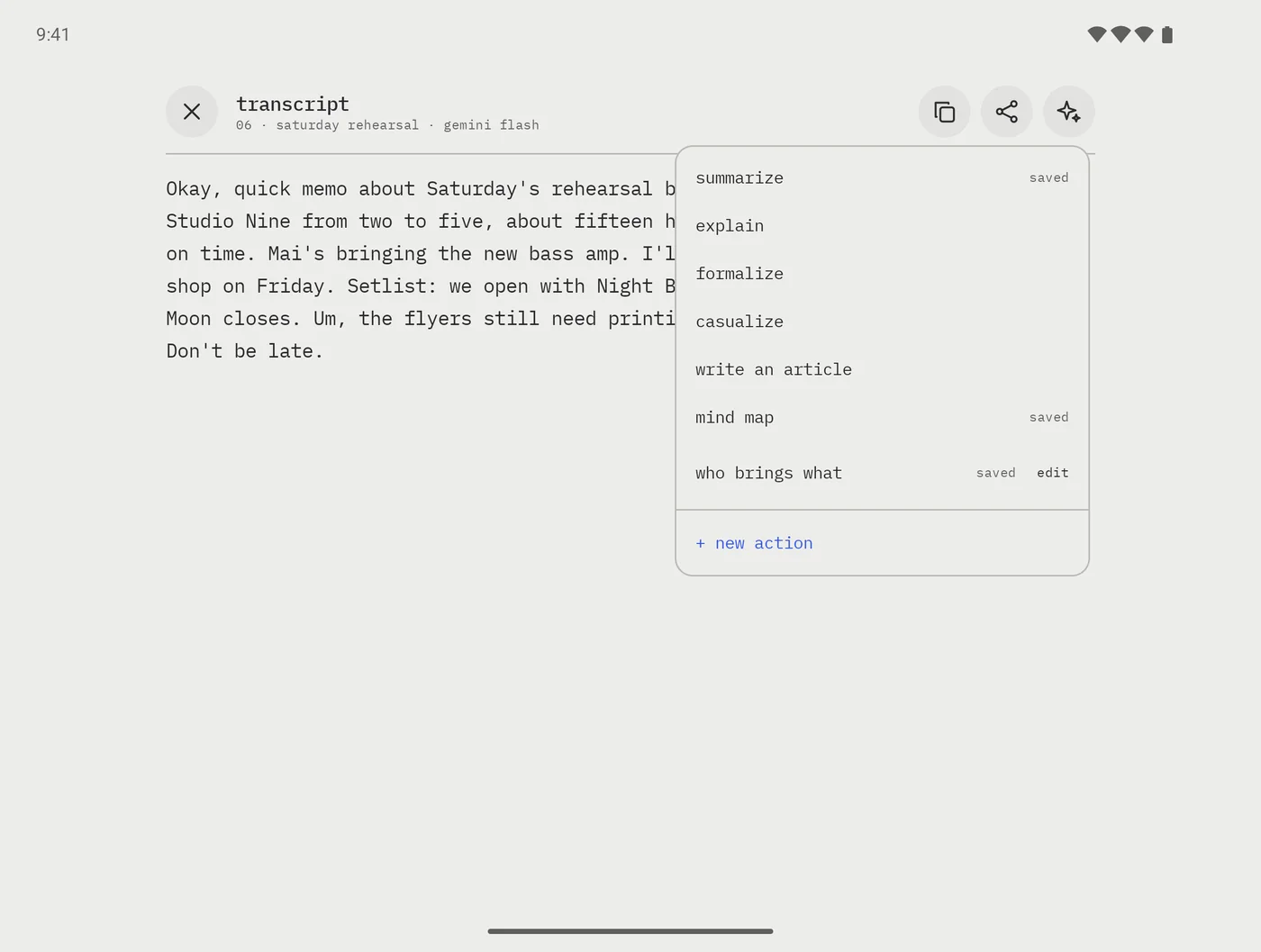
Open a transcript and press ✦. The menu lists:
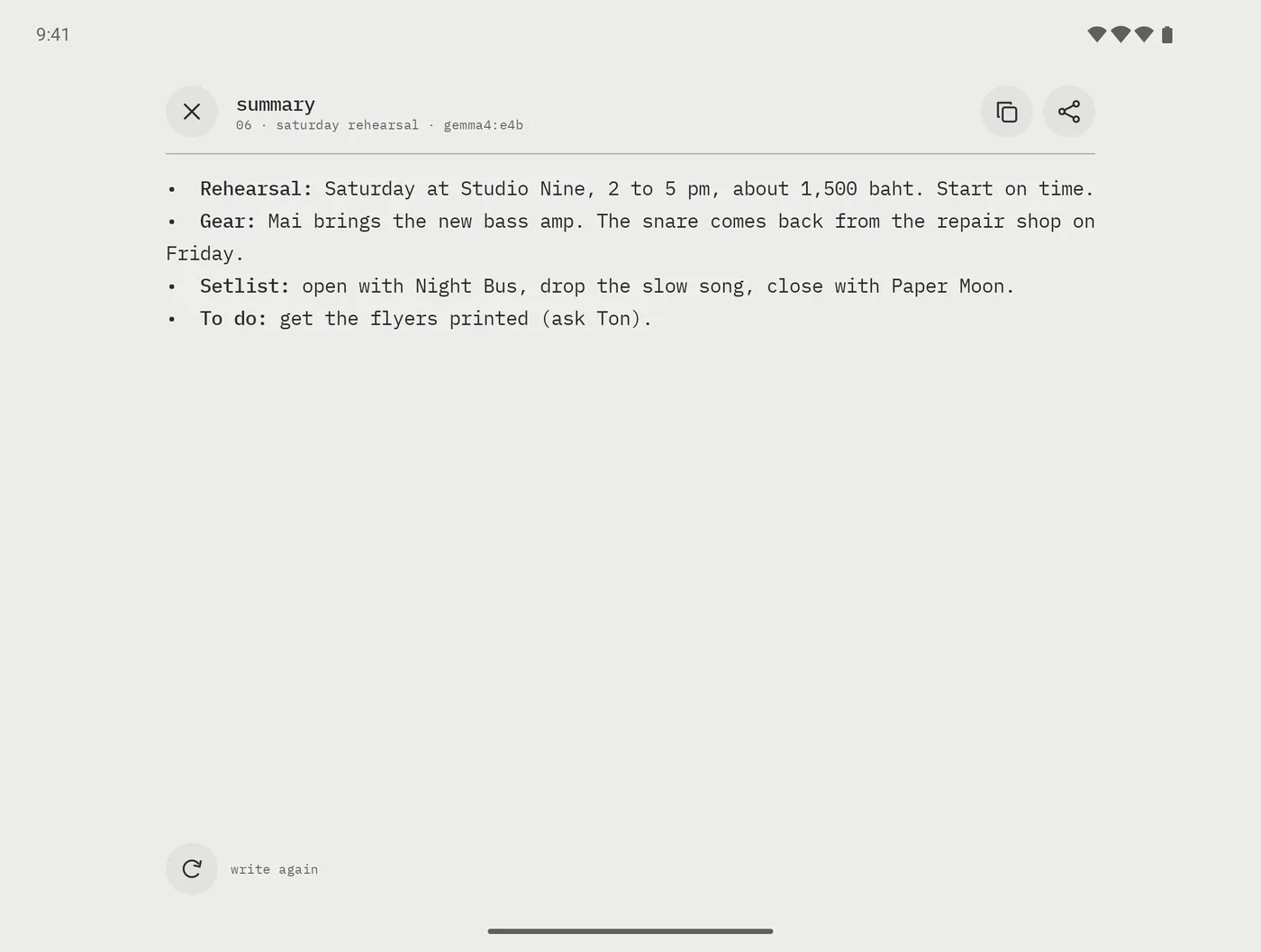
- summarize: a few short points, with decisions and to-dos.
- explain: what it's about, in plain words.
- formalize: rewritten for a report or an email.
- casualize: rewritten like a message to a friend.
- write an article: a title, sections and a conclusion.
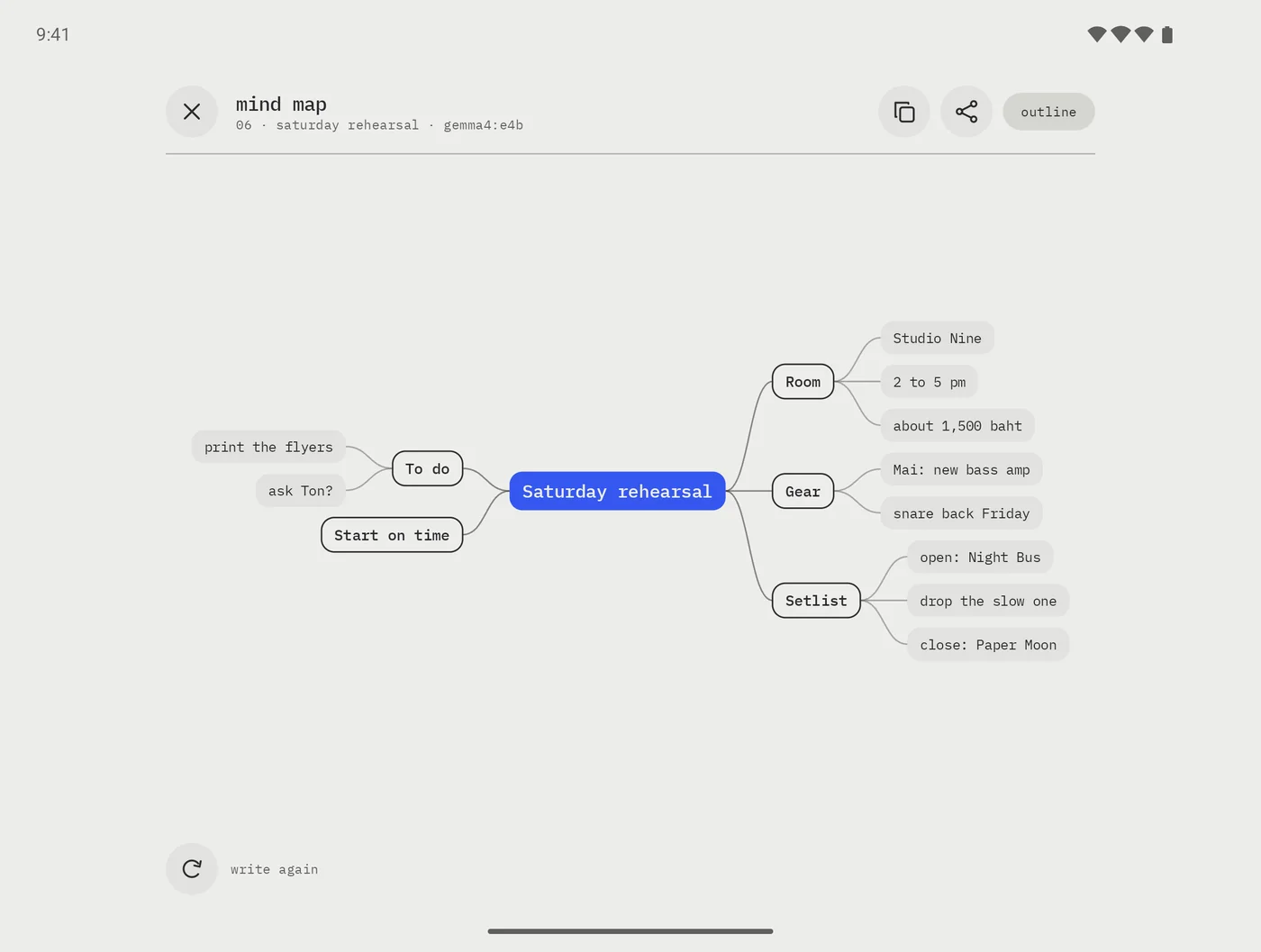
- mind map: the ideas drawn as a map.
Your own actions come after these. saved marks the ones this tape already has, and … the ones being written.
Results
- Pick an action and its result opens in its own window. It appears as it's written. Brain AI answers in the language of the transcript, keeping English words in English, so a Thai memo gets a Thai summary.
- Each result is kept with the transcript. Pick the action again later and it opens straight away; write again at the bottom asks for a fresh one.
- Copy and share work as on the transcript.
- You can leave AP-7 while it writes. A notification says when the result is ready.
Mind maps
A mind map is drawn once it's finished. Drag to move around it and pinch to zoom. outline at the top shows it as an indented list instead, and map brings the drawing back.
Your own actions
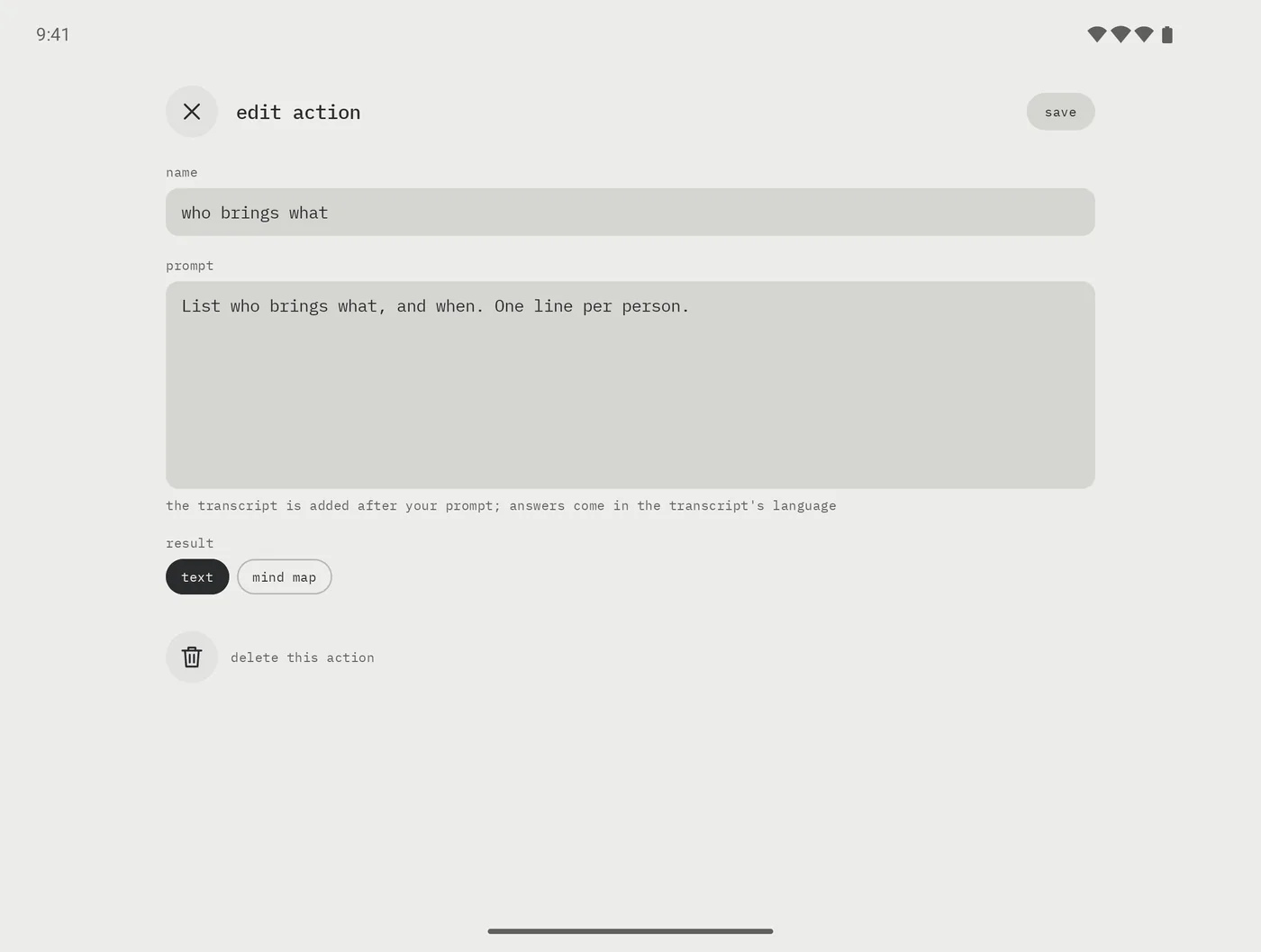
At the bottom of the ✦ menu, + new action makes your own. Give it a name, write the prompt (what to do with the transcript, which is added after your words), and choose whether the result is text or a mind map. Tap save.
Your actions are listed for every tape. edit beside one changes it; to delete it, tap the bin at the bottom of the editor twice.
Thinking
By default AP-7 asks for answers straight away, which is several times faster on models that "think". Turn on thinking for harder asks and pick the effort, low, medium or high: better answers, more waiting.
Quick memos
Two ways to be recording before you've finished the thought, without finding the app first.
From the home screen
Press and hold the AP-7 icon and pick memo. AP-7 opens already recording. You can drag memo onto your home screen as its own icon.
From the side button
Turn it on
In the settings tab, turn on side button memo. An app called ap–7 memo appears in your app list.
Point the side button at it
On a Galaxy, open Settings › Advanced features › Side button › Double press › Open app and choose ap–7 memo.
Double-press
Double-press the side button, even with the phone locked: AP-7 opens over the lock screen and starts recording.
- Over the lock screen, the inner screen shows the recorder alone: your tapes, transcripts and settings wait until the phone is unlocked. Once you stop, AP-7 goes back behind the lock screen.
- Android doesn't let any app use press-and-hold of the side button, so it's a double press.
Settings
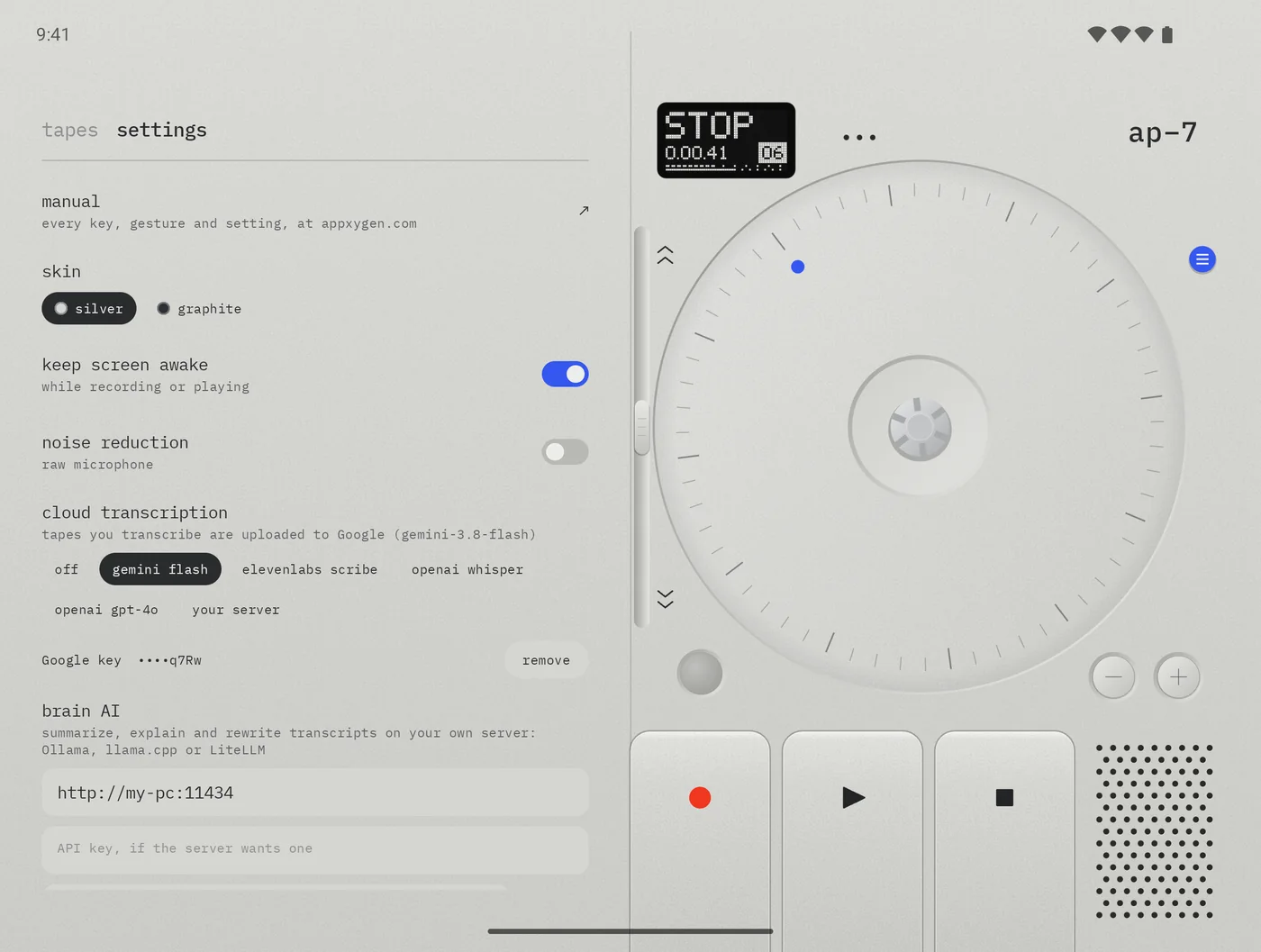
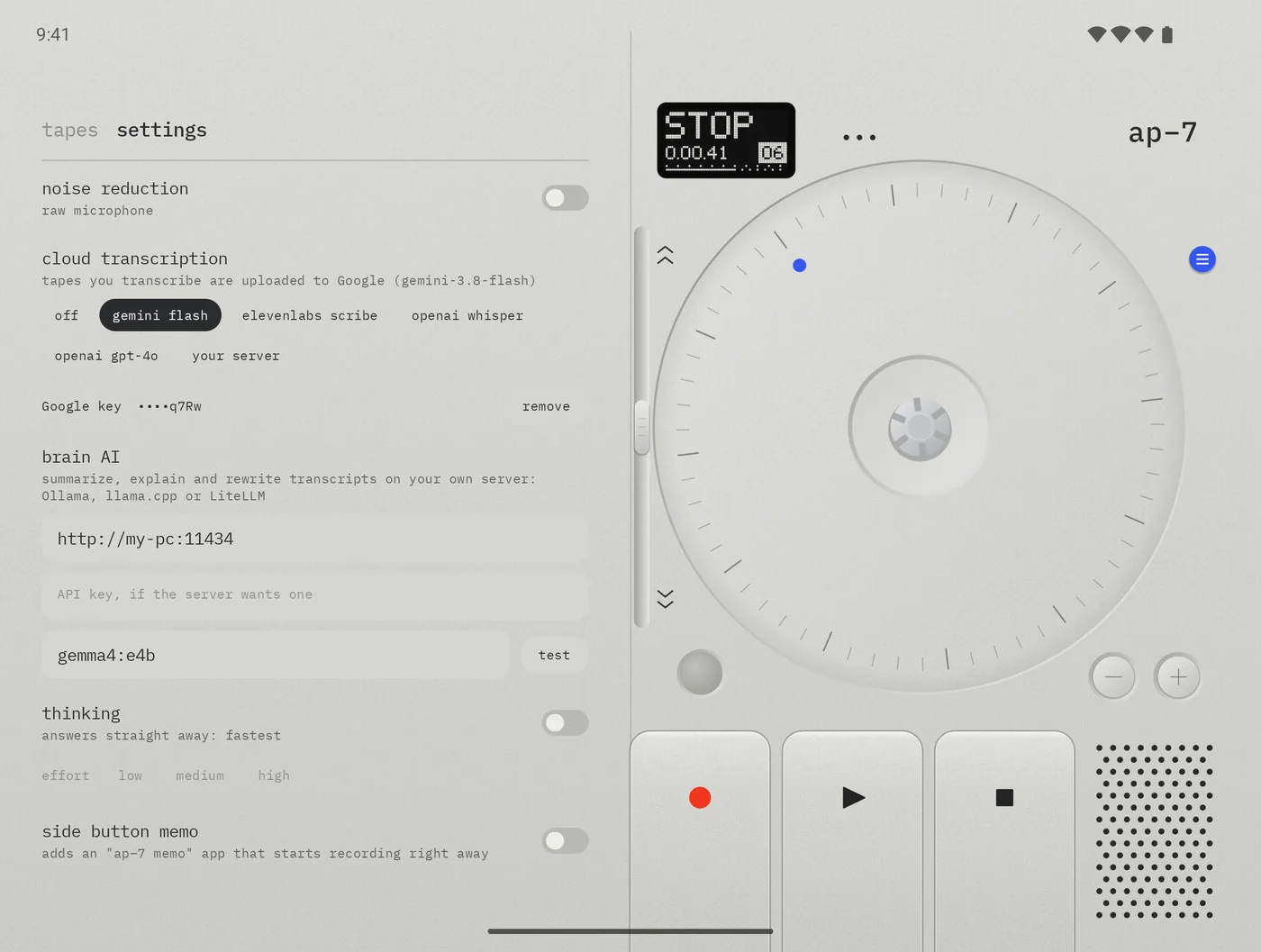
Settings are the second tab of the tape list: tap settings beside tapes. Changes apply as soon as you tap them. manual at the top opens this guide.
| Setting | Choices | What it does |
|---|---|---|
| manual | ↗ | Opens this guide. |
| skin | silver default · graphite | The finish of the face. See Two finishes. |
| keep screen awake | on default · off | Keeps the screen on while recording or playing. Off lets it sleep as usual; the tape keeps rolling either way. |
| noise reduction | off default · on | Records through the phone's voice processing to quiet background noise. Good for speech, may colour music. Applies from the next take. |
| cloud transcription | off default · gemini flash · elevenlabs scribe · openai whisper · openai gpt-4o · your server | Where transcribe sends a tape, with your key for that service or your server's address. See Tape to text. |
| brain AI | address · API key · model · test | Your own language model server. See Brain AI. |
| thinking | off default · on, with effort low · medium default · high | Lets the model reason before it answers. Slower, better on hard asks. |
| side button memo | off default · on | Adds the ap–7 memo app for the side button. Once it's on, the setting shows the path to choose it. See Quick memos. |
Where your tapes live
Every tape is a plain WAV file you can take anywhere.
- Tapes are kept in AP-7's own folder, Android/data/com.appxygen.ap7/files/Recordings.
- A tape's file is named after when it was made, such as
ap7_20261024_190212.wav. Renaming adds the title after it (ap7_20261024_190212_saturday rehearsal.wav), so the title travels with shares and exports and the tapes stay in the order you made them. - A transcript is saved beside its tape as
….transcript.json, with the latest brain AI result of each kind. It's renamed and deleted with the tape. - Export copies a tape to Recordings/AP-7, where My Files, other apps and a computer over USB can reach it.
Before you uninstall AP-7, export the tapes you want to keep. Android deletes an app's own folder with the app.
Privacy
- Your tapes stay on your phone. AP-7 has no accounts, no ads, no analytics and no crash reporting. APPxygen never receives your recordings, transcripts or keys.
- Cloud transcription is off until you choose a service, and then uploads only the tape you press transcribe on, straight to that service with your own key.
- Brain AI sends a transcript only to the server you set up, and only when you pick an action.
- Keys and server addresses stay on the phone and are left out of backups.
The full details are in the privacy policy.
All controls at a glance
| Where | Do this | What it does |
|---|---|---|
| ● | Press | Starts a take; while recording, pauses and carries on |
| ▶ | Press | Plays or pauses the loaded tape |
| ■ | Press | Ends a take, or stops; pressed again, back to the top |
| − + | Press | Previous or next tape |
| Lever | Hold up or down | Winds forward or back at 8× |
| Reel | Touch and hold | Holds the tape; while recording, pauses the take (HOLD) |
| Reel | Turn | Scrubs, 3 seconds a turn, clockwise forward |
| M or display | Tap (cover screen) | Opens the tape list |
| Tape list | Tap a tape | Loads it and opens or closes its keys |
| Tape keys | Bin, twice | Deletes the tape and its transcript |
| Tape keys | Tap the transcript's first lines | Opens the transcript |
| Transcript | Press and hold the text | Selects part of it |
| Transcript | ✦ | Brain AI's actions |
| Mind map | Drag, pinch | Moves around, zooms |
| AP-7 icon | Press and hold › memo | Opens AP-7 already recording |
| Side button | Double press | The same, with side button memo set up |
Questions and fixes
I press ● and the display says NO MIC.
AP-7 isn't allowed to use the microphone. Press ● again and allow it when Android asks. If Android doesn't ask any more, AP-7 opens its settings page for you: go to Permissions › Microphone and allow it.
The tape list won't open, or ▶, − + and the lever do nothing.
Not while recording: press ■ to end the take first. If PAUSE or HOLD is on the display, you're still recording.
The recording stopped by itself.
TAPE FULL means it reached 5 hours 47 minutes; REC ERROR means the microphone stopped giving sound. Either way, everything up to that moment is saved as a tape.
AP-7 disappears when I close the phone.
Open Settings › Display › Continue apps on cover screen and turn it on for AP-7. A take keeps recording either way.
Pressing transcribe takes me to the settings tab.
No transcription service is chosen yet. Pick one under cloud transcription and save your key. See Tape to text.
Transcription says "can't reach your server".
Check that the server is running on your computer and that Tailscale (or whatever connects them) is on, on both the phone and the computer. In settings, test under the address checks it.
Brain AI says to set it up first, or can't connect.
Fill in the address and model under brain AI in settings, save, then test. With Ollama on another computer, make it listen beyond that computer (OLLAMA_HOST=0.0.0.0). If the test says the model isn't there, it lists the ones that are.
Rename says "busy; rename when it's done".
The tape is being transcribed or brain AI is writing about it. Rename it once that's finished.
How do I get a tape onto my computer?
Press export on the tape, then connect the phone by USB and open Recordings/AP-7. Or press share and send it to Drive or email.
Will my tapes come with me to a new phone?
They're left out of Google's cloud backup because they can be large. Android's device-to-device transfer can move them; to be sure, export them and copy Recordings/AP-7 across yourself. API keys never move: type them in again on the new phone.
Still stuck? Write to hello@appxygen.com or use the contact page.
back to the top ↑