Foldman Vinyl user guide
Foldman - Vinyl player turns a foldable into a turntable under a smoked dust cover. Pick a record from the rack, press START, and listen open or folded. This sheet covers every key, gesture and setting.
- Getting started
- How the turntable works
- Your albums become records
- The rack
- On the deck
- Playing with the phone shut
- 25 turntables & 75 finishes
- The sound of a record
- Make a record yours
- Cut a mix record
- Settings
- Outside the app
- Shared with the cassette and CD players
- AUX IN (AUX MODE)
- Phones that don't fold
- TalkBack
- Privacy and usage stats
- All gestures at a glance
- Questions and fixes
Getting started
The turntable plays music files stored on your phone. It doesn't stream and comes with no songs, so copy your albums to the phone first: rips of your own records and CDs, downloads you bought, your band's demos. Or use it with a music app through AUX IN.
1. Install
Get Foldman - Vinyl player from Google Play. It works on book-style foldables (the Galaxy Z Fold and Pixel Fold kind) and on ordinary phones too. See Phones that don't fold.
2. Choose how to listen
The first time you open it, QUICK START offers two ways in:
- USE EASY MODE keeps the music you already play in Spotify, YouTube Music or another app, and uses the turntable as its player: START, the cue lever and the lid. Nothing to collect, no rack to fill. See AUX IN.
- USE MY MUSIC asks for music access. Every album on the phone becomes a record on the rack. The same prompt asks to show notifications: allow those too, as the lock screen and Bluetooth controls come from the notification.
You can open the quick start again from Settings. With no music found, the rack says NO RECORDS YET and offers ALLOW MUSIC ACCESS and USE WITH A MUSIC APP.
3. Keep playing when you close the phone
The turntable plays on the outside (cover) screen with the phone shut. On some foldables Android pauses apps when you fold the phone. If the app disappears or the phone locks when you close it:
- Galaxy Z Fold: open Settings › Display › Continue apps on cover screen and turn it on for Foldman - Vinyl player.
- Pixel Fold: set the same option to Always. On other foldables, look in Display settings for something similar.
That's it. Swipe the rack in from the left, hold a record to take it out, drop it on the platter and press START.
How the turntable works
The hinge is the dust cover. Like a real turntable, a record plays with the lid up or down.
Open: the deck and the rack
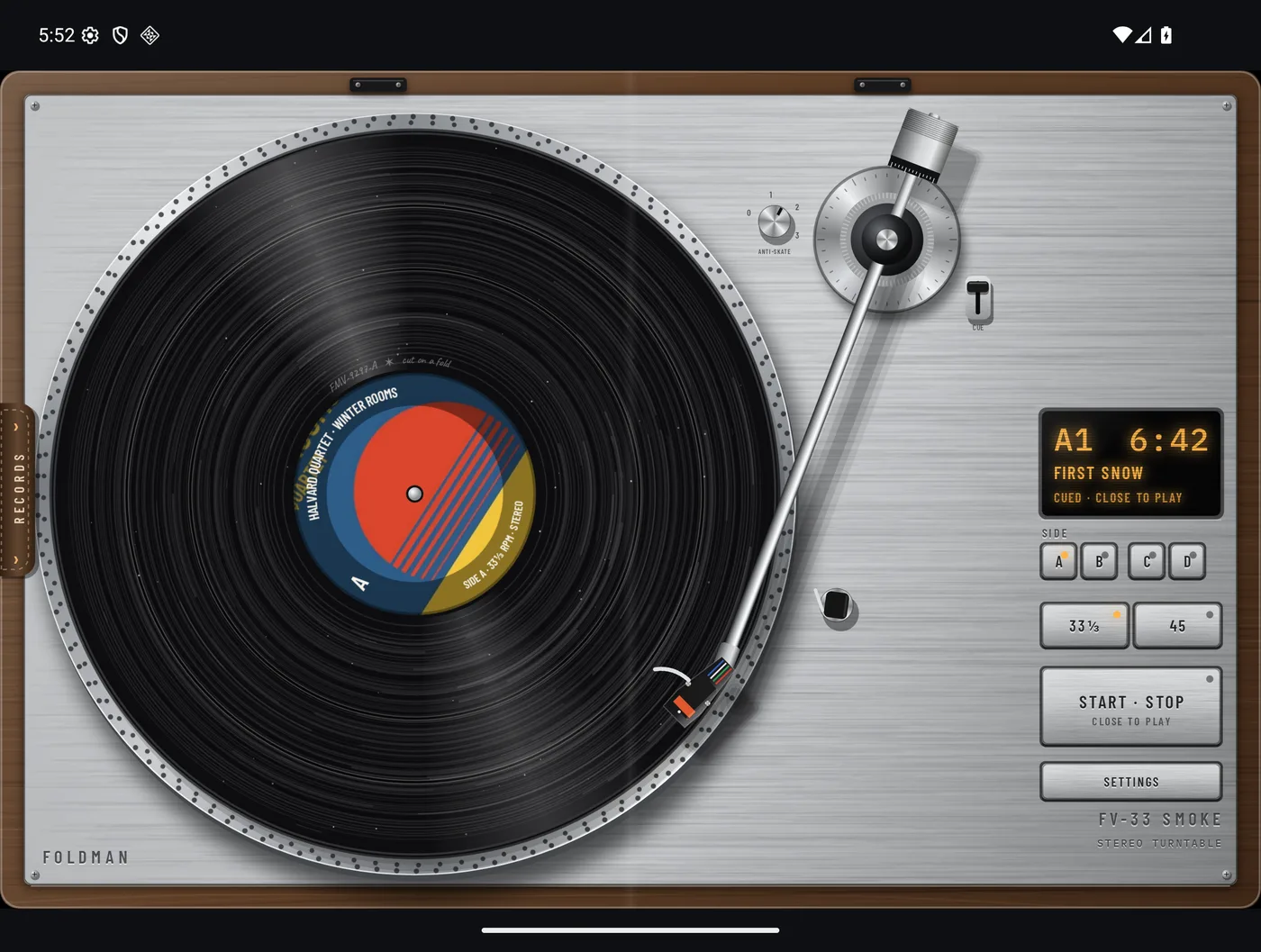
Unfolded, the inner screen is the turntable with its dust cover up, filling the screen. Your records wait on a rack that slides in from the left. You choose records, put them on the platter, turn them over and change settings here, and START plays them.
Closed: the turntable under its lid
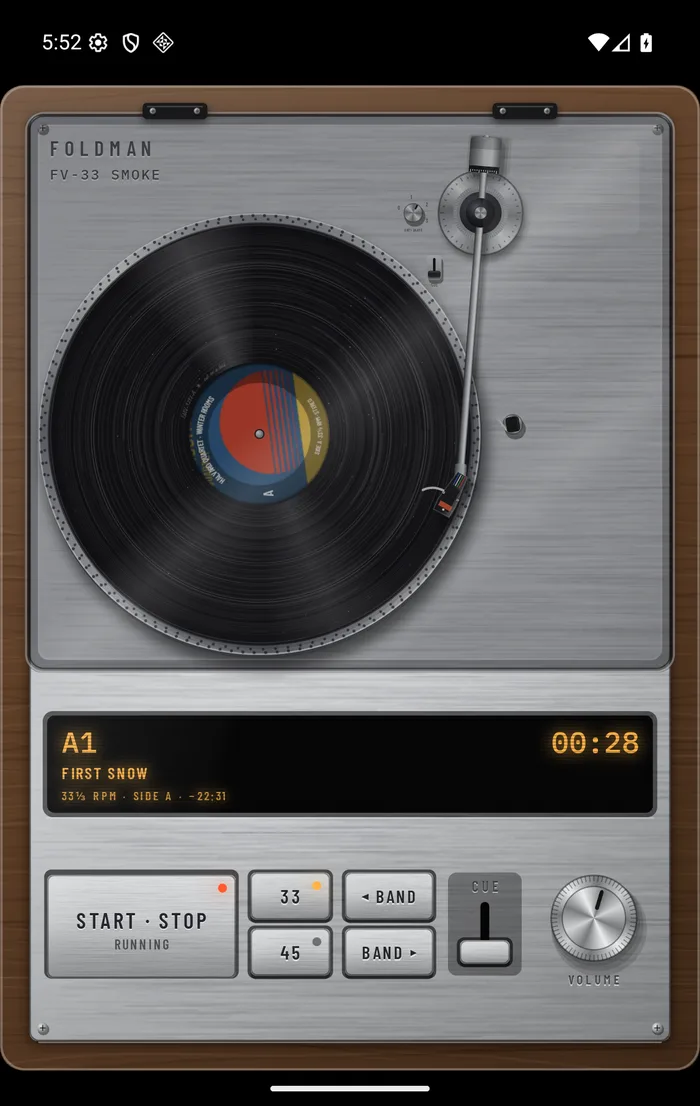
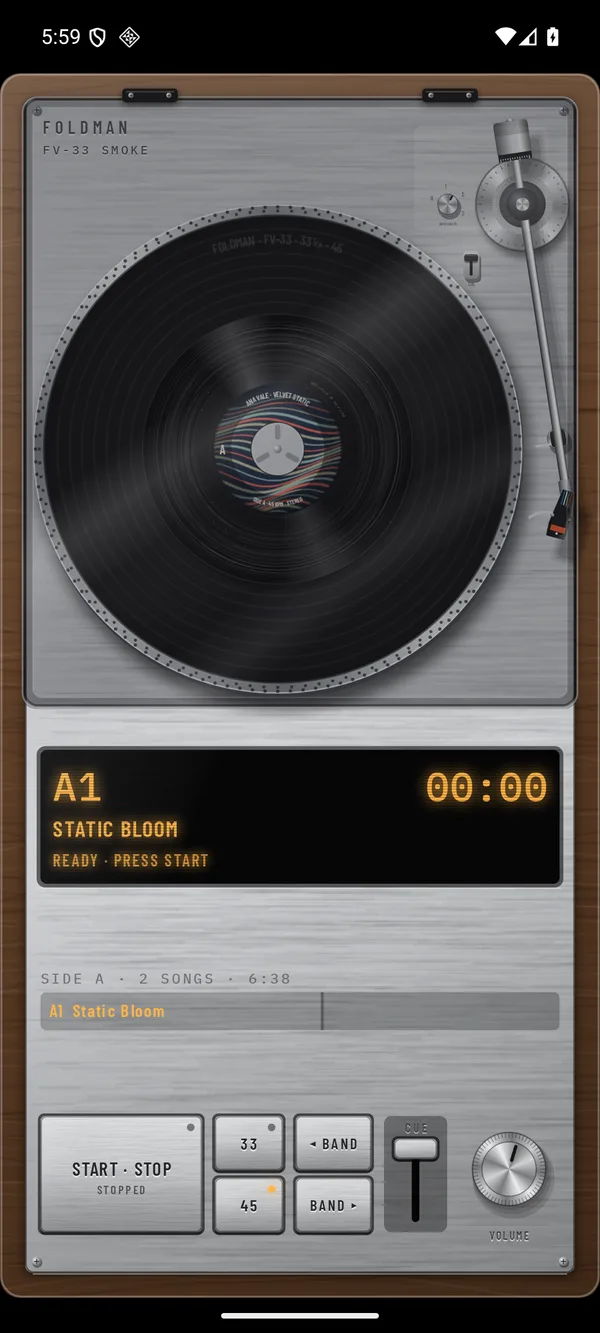
Folded, the cover screen shows the same turntable under its smoked dust cover, with the keys, the cue lever, the display and the volume knob on the front panel. It plays here too, with the phone in your pocket.
What happens when you open and close
- Unfold while a record plays: it plays on, now with the dust cover up.
- Fold: nothing starts by itself. Press START when you're ready.
- The arm stays where you left it across a fold, and every record side remembers its place.
Your albums become records
The turntable reads the tags in your music files (artist, album, title, track number, length) and presses each album into a record, with its songs split over sides.
All music, or only some folders
With music access allowed, the rack holds all music on this phone. To use only certain folders, open Settings and tap ADD FOLDER under MUSIC. Add as many as you like, including folders on an SD card; REMOVE takes one off, and RESCAN reads them again after you've copied in new music.
- File types: MP3, M4A, AAC, FLAC, OGG, OPUS and WAV.
- A file with no tags takes its folder name as the album and its file name as the title.
- Cover art in the files is printed on the sleeve and on the record's label.
- Tracks under 20 seconds are left off the rack. Turn on Include short tracks to keep them.
- ONE RECORD PER ALBUM is the default; PER ARTIST makes one record per artist instead.
How the sides are cut
Like a real pressing, an album is split between songs, never inside one:
- Up to about 46 minutes: one LP, side A and side B, split near the middle.
- Longer: a double (or triple) album, sides A to D (or F) of about 23 minutes each.
- Four songs or fewer, under 15 minutes: a 7-inch single, which plays at 45.
Each side plays from its first song to its last, then the needle runs into the run-out groove. Turn the record over for the next side.
The rack
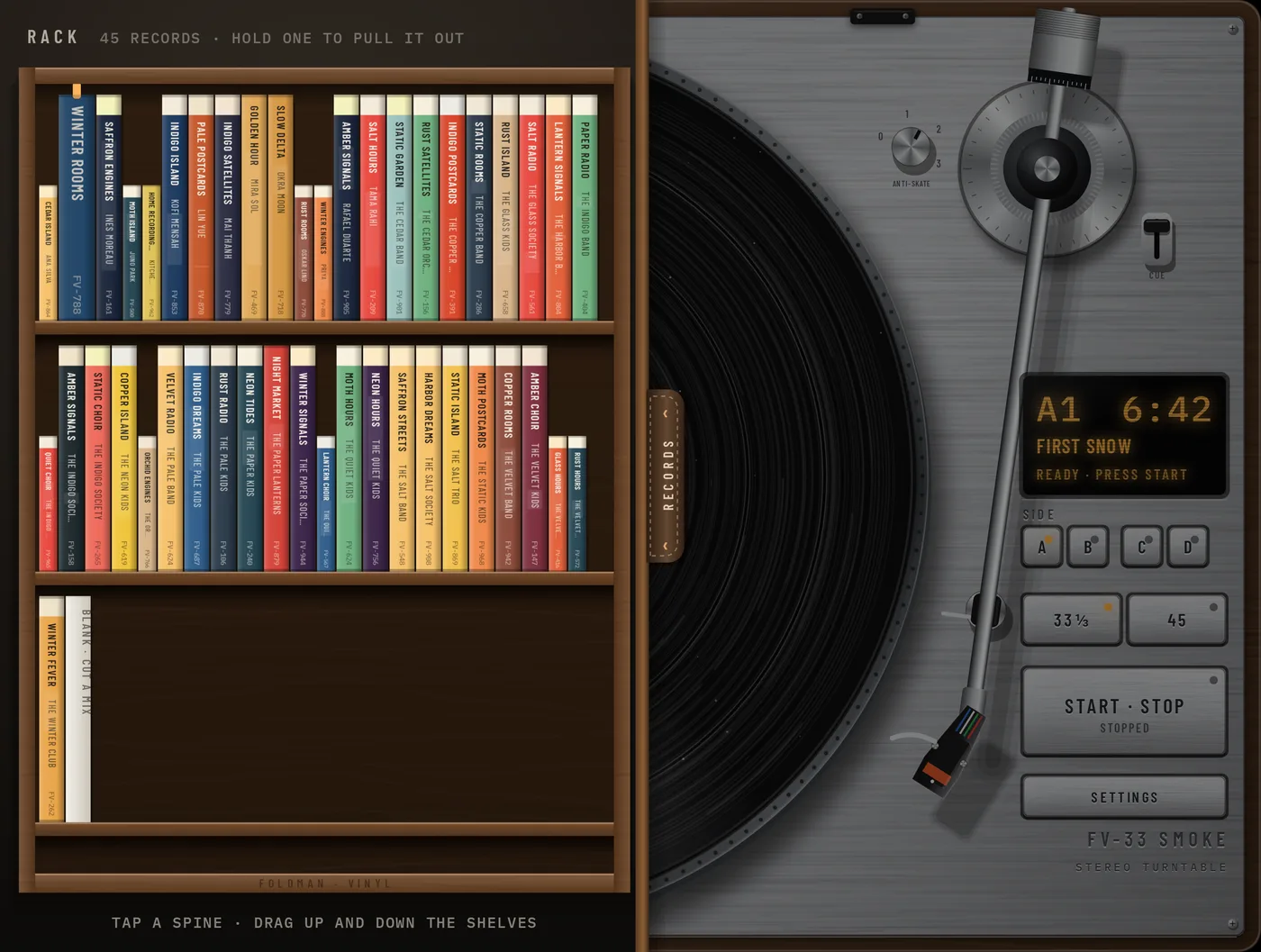
Open it: swipe right from the left edge of the inner screen, or tap the RECORDS tab on the left of the deck. Swipe it back to the left, or tap the tab, to close it. Its header reads RACK, with the number of records.
Your records stand on the shelves spine out. Each spine shows the artist and title, reading top to bottom, in the colour of the cover's edge (or the album's own colours when it has no cover), with a catalogue number at the foot. A double album stands thicker; a 7-inch single stands shorter and thinner; a mix record's spine is white card with its name handwritten. The record that's on the platter has a small amber tab sticking up from its spine.
- Drag up and down to look along the shelves; a quick flick coasts. The small bar on the right shows how far down you are.
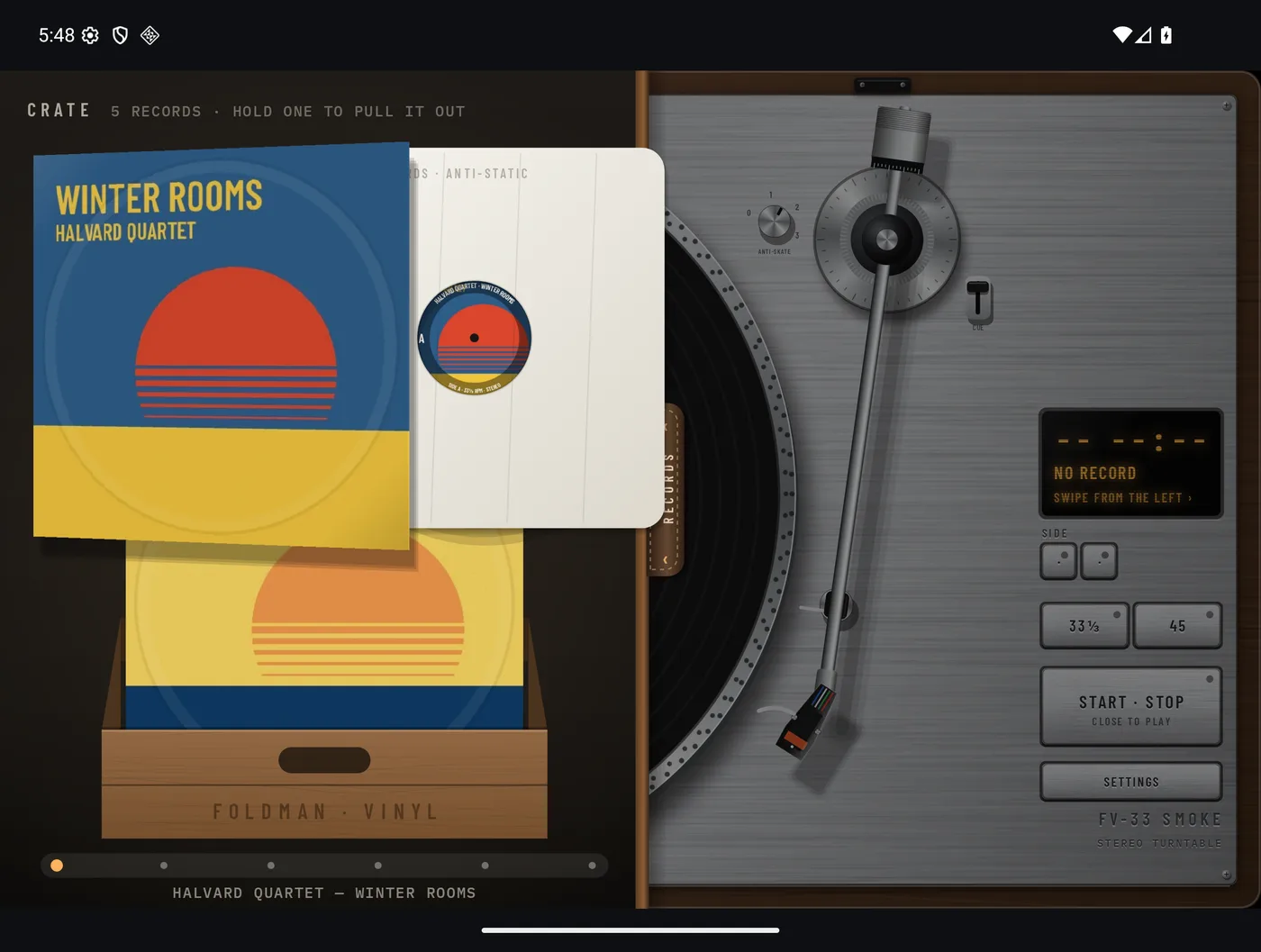
- Tap a spine: the record slides out and turns to face you, big, in front of the rack, leaving a gap on the shelf. Tap the cover to see the back of the sleeve, with its sides and songs; tap the back for the record's details.
- Swipe the cover left or right for the next or previous record. Tap another spine to choose that one instead. To put it back, tap the same spine, tap outside the records, or drag the cover down.
- Hold the cover (or drag it up), or hold a spine directly, to take the record out: the sleeve, the inner sleeve and the record come out, the record comes into your hand and the rack moves aside.
- Drop it on the platter. Drop it anywhere else and it goes back. The record you took off goes back on the rack by itself.
The plain white spine at the end of the rack is the blank record: tap it to cut a mix record.
On the deck
- Double-tap the record to turn it over. A single LP goes A to B and back; on a double album the next side may be on the other disc, and the deck swaps it.
- SIDE keys (A, B, C, D…) pick a side directly.
- Hold the record to lift it off the platter and put it back on the rack.
- Tap the empty platter to open the rack.
- 33 and 45 show the record's speed. A 7-inch plays at 45; an LP at 33⅓.
- SETTINGS opens Settings.
The display shows the side and song, the time and the song's title.
Playing a record
- START · STOP, open or folded, starts the platter: the arm swings in and the needle drops. The music starts when the needle lands. Press it again to stop; the needle lifts and the arm goes home.
- Cue lever (on the cover, beside the keys; open, beside the arm): lifts the needle off the record (a pause) and lowers it again.
- ◂ BAND and BAND ▸ (on the cover) move the arm to the previous or next song, along the gaps between the grooves.
- Move the arm yourself: drag the needle across the record (through the lid, on the cover) and let go where you want to listen.
- Volume knob: turn it by dragging.
At the end of a side
The needle runs into the run-out groove and rides it for a couple of turns, then the arm lifts and goes home. The display says SIDE A PLAYED · FLIP ME: double-tap the record on the open deck to turn it over.
Every side remembers its place
Take a record off half-way through a side and put it back later: the needle comes down where you left it.
25 turntables & 75 finishes
Open SETTINGS and scroll to TURNTABLE SKINS to switch the entire deck — plinth, platter, tonearm, headshell, gauges and controls.
- FV-33 SMOKE (free): brushed alloy plate with WALNUT, SILVER or PIANO frame.
- 24 Masterpiece Decks (72 finishes): browse by category — ANCIENT, AGED, CLASSIC, MODERN, CLUB, K-POP, J-POP, RETRO, NEON, LO-FI, SYNTH and ARTISAN. Each deck has three custom finishes and its own live hardware — from glowing 300B vacuum tubes and Kyoto Urushi lacquer to the Aged, Classic & Ancient Collection's 3D analog controls (rolling drum counters, fluted rotary knobs, bat-handle toggles, mechanical plungers, slide throw levers, meshing brass gears, tilt compass, spinning flyball governor and open-heart balance wheel).
- Try before unlocking: tap any deck and press TRY ON DECK to spin your own records on it live. Unlock all 24 Masterpiece Decks forever with the one-time Complete Collection Pass — every playback feature stays free.
The sound of a record
The turntable makes the sounds a turntable makes: the key, the motor coming up to speed, the needle landing, the run-out groove's thump, the arm on its rest, the sleeve sliding out and going back.
Surface noise
Under the music, a record has its own sound. Choose it in Settings › PLAYER › Surface noise:
- OFF: clean, only the music, as it is in the files.
- LIGHT (the default): a well-kept record. A little crackle, a faint rumble, the slightest wow once a turn of the platter.
- WORN: a well-loved record. More crackle and pops, a little more wow, softer highs.
Surface noise is only there while the needle is in the groove, and it's part of the sound, so it comes through headphones and Bluetooth too.
Key sounds and haptics
The mechanical sounds and the small vibrations of keys and levers. Turn them off in Settings; the music is never affected.
Make a record yours
Tap a record's spine on the rack, tap its cover, then tap the back of its sleeve, for its details:
- LABEL: write your own name for it, then SAVE LABEL.
- COVER: FROM GALLERY prints a photo on the sleeve and the label; drag and pinch to place it, RESET FIT to start again. FIND ONLINE looks the cover up (only when you press it; it sends the artist and album names, nothing else).
- TAKE OFF THE RACK hides a record. It's listed under TAKEN OFF THE RACK in Settings, with PUT BACK.
Cut a mix record
- Tap the blank record at the end of the rack.
- Name it, then find songs and tick them. The count shows the minutes and how many records they'll take.
- Put them in order under RUNNING ORDER.
- Cut it: the mix goes on the rack like any album, pressed into sides.
A mix record's name is your own, so its cover is never looked up online: pick a photo from your gallery. Open its details to change the songs, or to erase it (ERASE THIS MIX RECORD?). The songs stay on the phone.
Settings
Tap SETTINGS on the deck.
| Setting | What it does |
|---|---|
| QUICK START, MANUAL | The two ways in again, and this guide. |
| TURNTABLE SKINS | Switch between 25 turntables and 75 finishes (FV-33 SMOKE free, plus 24 Masterpiece Decks with live preview and one-time Complete Collection Pass). See 25 turntables & 75 finishes. |
| MUSIC | All music, or the folders you pick; one record per album or per artist; short tracks. |
| RACK | Records taken off the rack, to put back. |
| AUX MODE | AUX IN, and the notification access it needs. See AUX IN. |
| SHARED WITH THE CASSETTE AND CD PLAYERS | The folder with Foldman.json. See below. |
| Key sounds and haptics | The turntable's mechanical sounds and small vibrations. |
| Surface noise | OFF, LIGHT or WORN. See Surface noise. |
| Home screen widget | ADD WIDGET puts the record that's playing, with PREV, PLAY/PAUSE and NEXT, on your home screen. |
| Keep screen on while playing | The screen stays lit while a record plays and the app is showing. It uses more battery. |
| Motion light | The light on the record, the platter and the dust cover moves as you tilt the phone; the record itself never does. It stays still in Battery Saver, or with animations turned off. |
| Use without unfolding | Everything on the cover screen, as on a phone: tap the dust cover or the bottom-left RECORDS strip to open the lid onto the deck, the rack and settings without covering the spinning record. |
| Look up covers online | Only when you ask, from a record's details. |
| Usage stats | Anonymous counts of records played and features used. See Privacy. |
| SUPPORT FOLDMAN | Optional one-time coffees to support the maker, alongside the Complete Collection Pass for Masterpiece Decks. Every playback feature stays free. |
Outside the app
While a record plays, its notification, the lock screen, Bluetooth and headphone keys play, pause and skip songs.
The home screen widget shows the record turning while it plays, the song, and PREV, PLAY/PAUSE and NEXT.
Shared with the cassette and CD players
Foldman - Cassette player and Foldman - CD player keep labels, cover photos and hidden albums in a Foldman.json file beside your music. Choose the same folder under SHARED WITH THE CASSETTE AND CD PLAYERS and the records on the rack wear them too.
For now the turntable only reads that file. Where each record side was left stays on this phone.
AUX IN (AUX MODE)
AUX IN lets the turntable play and pause what's playing in another app, like Spotify or YouTube Music. The sound stays in that app.
Switch it on
- Tap USE EASY MODE in the quick start, or turn on AUX IN under AUX MODE in Settings.
- Android asks for notification access. Its warning is about reading messages; the turntable only looks at what's playing: the song, its cover and the play controls. Switch on Foldman - Vinyl player, then come back.
- AUX IN goes on the deck. Start a song in your music app and press START.
AUX IN isn't a record, so it isn't on the rack. After playing a record, put AUX IN back with PUT AUX IN ON THE DECK under AUX MODE in Settings.
What AUX IN can't do
It plays, pauses and skips; it can't change the sound, so there's no surface noise on another app's music. Some apps refuse to play in the background.
Phones that don't fold
On an ordinary phone, the screen is the cover screen and the dust cover is a touch lid:
- Tap the dust cover to lift it: the deck fills the screen, with the rack and settings. CLOSE on top puts the lid down.
- START with no record lifts the lid too.
- The record plays on with the lid up or down.
On a foldable you can work the same way with Use without unfolding in Settings.
TalkBack
The turntable is drawn, but every part you can touch tells TalkBack what it is: the RECORDS tab, the record you're looking at on the rack, the platter, the keys, the cue lever, the volume knob and the display. What a finger does with a hold or a drag is there as an action: on the rack, Next record, Previous record, Put it on the platter and Details; on the deck, Turn it over, Lift it off, Louder and Quieter. Open TalkBack's actions menu on a part to find them.
Privacy and usage stats
- No account, no ads. Your music never leaves the phone.
- Usage stats are anonymous counts of records played and features used. Never your music, labels or folders. Turn them off in Settings.
- Look up covers online sends only the artist and album names, and only when you press FIND ONLINE.
- AUX IN looks only at what's playing in another app. It never reads your notifications.
See the privacy policy.
All gestures at a glance
| Where | Gesture | What it does |
|---|---|---|
| Deck | Swipe right from the left edge, or tap RECORDS | Opens the rack |
| Rack | Swipe left, or tap RECORDS | Closes the rack |
| Rack | Drag up or down | Looks along the shelves; a quick flick coasts |
| Rack | Tap a spine | Slides the record out to face you |
| Rack | Tap the cover | Shows the back of its sleeve; tap the back for its details |
| Rack | Swipe the cover left or right | Next or previous record |
| Rack | Tap the same spine or outside the records, or drag the cover down | Puts the record back |
| Rack | Hold the cover or a spine, or drag the cover up | Takes the record out of its sleeve |
| Rack | Drop the record on the platter | Puts it on |
| Rack | Tap the blank record | Cuts a mix record |
| Deck | Double-tap the record | Turns it over |
| Deck | Hold the record | Lifts it off, back on the rack |
| Deck | Tap a SIDE key | Changes side |
| Deck or cover | START · STOP | Drops the needle and plays; stops and sends the arm home |
| Deck or cover | Cue lever | Lifts or lowers the needle |
| Cover | ◂ BAND, BAND ▸ | Previous or next song |
| Cover | Drag the needle | Moves the arm to any place on the side |
| Cover | Drag the volume knob | Louder or quieter |
| Phone | Tap the dust cover | Lifts the lid onto the deck |
| Record details | Drag and pinch the photo | Places the cover photo |
Questions and fixes
START does nothing.
Is there a record on the platter? The display says NO RECORD: open the rack and put one on.
The music stops when I fold the phone.
Android is pausing the app on the cover screen. See Keep playing when you close the phone.
A song I expected isn't on the rack.
Check that its folder is picked under MUSIC in Settings, and press RESCAN. Tracks under 20 seconds are left off the rack unless Include short tracks is on. Songs downloaded inside streaming apps are locked to those apps: use AUX IN for them.
Why is my album split into sides?
It's a record: an album is pressed into sides like a real LP, split between songs. Double-tap the record on the deck to turn it over, or use the SIDE keys. See How the sides are cut.
I don't want the crackle.
Set Surface noise to OFF in Settings.
Swiping from the left edge goes Back instead of opening the rack.
Swipe from beside the RECORDS tab, or tap the tab. Elsewhere along the edge, Android's Back gesture comes first.
AUX IN doesn't play.
Start a song in the music app first: AUX IN follows the app that's playing, or the last one. Some apps refuse to play in the background. If Settings shows ALLOW ACCESS, notification access is off.
Still stuck? Write to hello@appxygen.com or use the contact page.
back to the top ↑